Policy Best Practices › Create a Phone Home Policy
Create a Phone Home Policy
In addition to the traditional subnet discovery methods, there is also the option to create and use a Phone Home policy on CA TM clients. At a defined schedule, the CA TM client sends a notification and policy consistency check to the CA TM Server. If the local IP range of the client does not exist, Phone Home creates the subnet in the Subnets area on the Discovery tab in the Threat Management Console.
In addition, you can further control the subnet creation process using the following registry keys, AllowedSubnets, and UnallowedSubnets.
These are located in the CA TM registry branch under CurrentVersion\NameServer. The format of the IP ranges can be as follows and delimited with a comma:
- 192.x.x.x or 192.168.0.0/8 Class A Range
- 192.168.x.x or 192.168.0.0/16 Class B Range
- 192.168.1.x or 192.168.0.0/24 Class C Range
By default the CA TM Console will not automatically generate subnets for the following addresses:
- Any subnet with the mask 255.255.255.255. This usually filters out point-to-point connections, since they typically have this mask.
- Any address of the form 127.0.0.x, since these are loopback addresses.
- Any address of the form 169.254.x.x, since these addresses are non-routable.
- Any address with the highest byte between 224 and 239, since these are multi-cast addresses.
To create a Phone Home policy
- Log into the CA TM Console.
- Click on Policy Management.
- For Application select Common, and for Type select Phone Home.
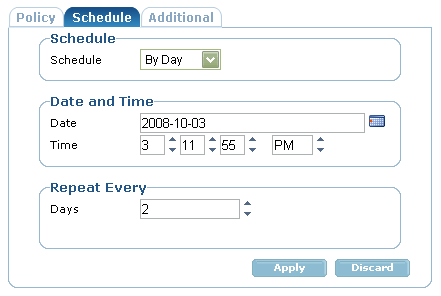
- Click on Schedule, and then specify how often you want the client machines to contact to the CA TM Sever.
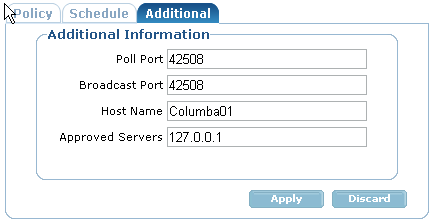
- Click Additional, and enter the following information:
- In the Host Server field enter the name of the CA TM Server machine.
- In the Approved Server field enter the IP address of the CA TM Server machine.
Note: If you are using multiple CA TM Servers, separate each IP adress with a comma.
- Click on Apply.
- Click Assign and select the branches to which you want to assign the policy.
- Click Assign Branches.
The policy is assigned to the specified branches.
Copyright © 2009 CA.
All rights reserved.