

Arcserve UDP Agent (Windows) requires you to license your product to receive authorized and uninterrupted access to the related components.
Arcserve UDP Agent (Windows) will function for a period of 30 days after you begin using it. Then, apply an appropriate license key to continue using it.
To add a Arcserve UDP Agent (Windows) license, access the Arcserve UDP Agent (Windows) Monitor Advanced options.
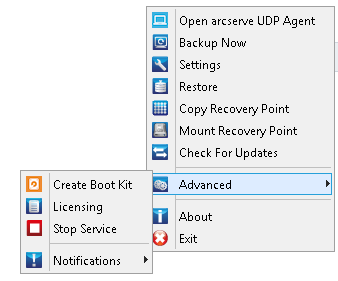
Note: For Windows Core Operating Systems (Windows Server 2008/R2, 2012/R2 Core edition), run the "CALicnse.exe" file and provide the proper license key information. The CALicnse.exe file is located in the following directory: C:\Program Files\CA\SharedComponents\CA_LIC
Follow these steps:
Note: Perform this operation locally on the computers running Arcserve UDP Agent (Windows) software.
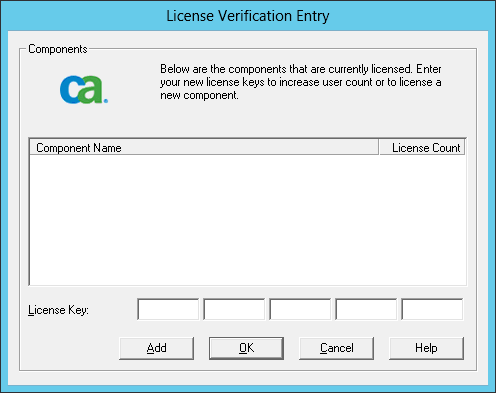
The License Verification Entry dialog opens, displaying all valid CA licensed products.
Note: If no CA products were previously licensed, the field of this dialog is empty.
The component is licensed.
All components you specified are licensed.
The license key information is stored in the ca.olf file on each of the computers that are running your CA software.
|
Copyright © 2015 Arcserve.
All rights reserved.
|
|