

Agent for SharePoint Guide › Request and Install a Policy Server Token Signing Certificate › How to Request and Install a Policy Server Token Signing Certificate
How to Request and Install a Policy Server Token Signing Certificate
The Policy Server requires an SSL certificate to sign the WS-Fed token it sends to the SharePoint claims provider. This certificate verifies that the WS-Fed token is from the Policy Server and not an unauthorized third party.
The following graphic describes the process for requesting and installing a Policy Server signing certificate:
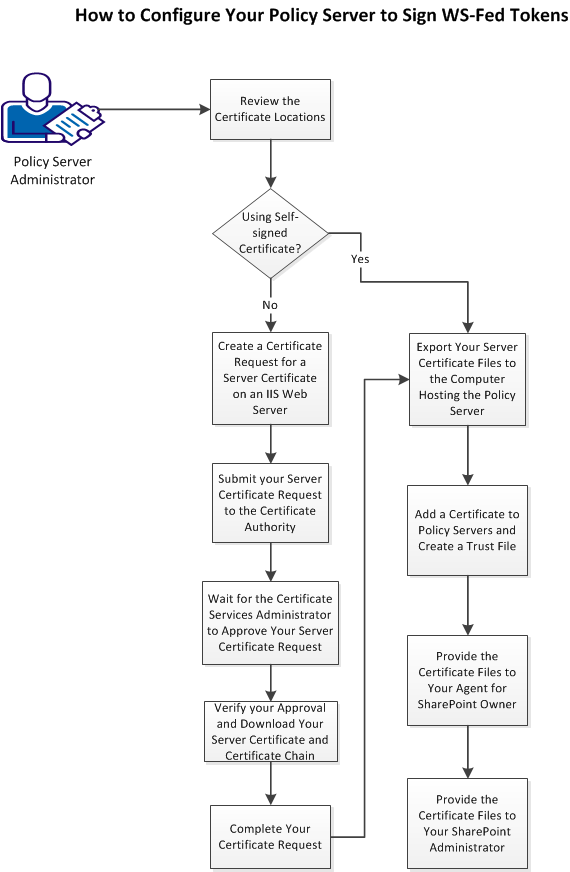
Follow these steps:
Note: This procedure provides one possible example of how to configure this feature using third-party tools. CA Technologies did not develop nor provide these tools. These tools are subject to change at any time by the third party without notice. Use this procedure as a guide for configuring this feature in your specific environment. The actual steps that are required in your situation could be different from the steps that are shown here.
- Review the certificate locations.
- If you are using a self-signed certificate, go to Step 8.
Important! Do not use self-signed certificates in production environments. We recommend using self-signed certificates in test environments only.
- Create a certificate request for a server certificate on an IIS web server.
- Submit your server certificate request to the certificate authority.
- Wait for the Certificate Services administrator to approve your server certificate request.
- Verify your approval and download your server certificate and certificate chain.
- Complete your certificate request (using the same IIS web server and browser from Step 3).
- Export your server certificate files to the computer hosting the Policy Server.
- Add a certificate to Policy Servers and create a trust file.
- Provide the certificate files to your CA SiteMinder® Agent for SharePoint owner.
- Provide the certificate files to your SharePoint administrator.
Copyright © 2013 CA.
All rights reserved.
|
|