

CA XCOM Gateway Administration › Manage Realms › Display Realms
Display Realms
You can use the Manage Realms page to view configured realms of CA XCOM Gateway. This page shows in a tabular format.
Follow these steps:
- Log in to CA XCOM Gateway.
The Overview page appears.
- Click Administration.
The Administration page appears.
- Click Manage Realms.
The Manage Realms page appears.
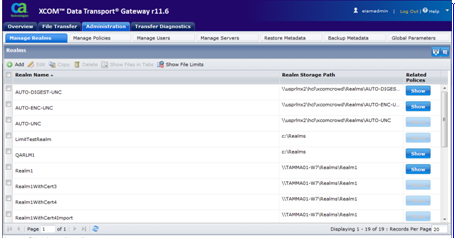
- (Optional) Additional columns can be selected for display by hovering over any column heading. Click the downward arrow and select the desired columns.
Filter Realms
You can use the Manage Realms page to display specific realms of CA XCOM Gateway.
- To display filtered realms.
-
- Log in to CA XCOM Gateway.
The Overview page appears.
- Click Administration.
The Administration page appears.
- Click Manage Realms.
The Manage Realm page appears.
- Click the Filter icon in the right-hand side of the title bar.
The Filter Realms panel appears.
- Select the Policy name from the drop-down or type the realm name in the Realm Name field.
- Click Apply, to view the specified realms.
In the Display Realms table, only the filtered realms appear.
- Click Remove Filter to clear the applied filter.
All realms are listed in the display realms table.
- Click the Hide Filter Icon, the realm filter panel disappears.
The Show Realm Filter button is a toggle button, upon selection it changes to the Hide Filter button.
Copyright © 2013 CA.
All rights reserved.
|
|