Using CA XCOM Management Center Through the Internet › Schedule Transfer › Display, Edit, Delete, or Submit a Configuration File › Display and Edit a Configuration File
Display and Edit a Configuration File
To display and edit a configuration file
- Click Schedule Transfer.
The main Schedule Transfer page appears.
- Click the Load button.
The Save Configuration Files page appears.
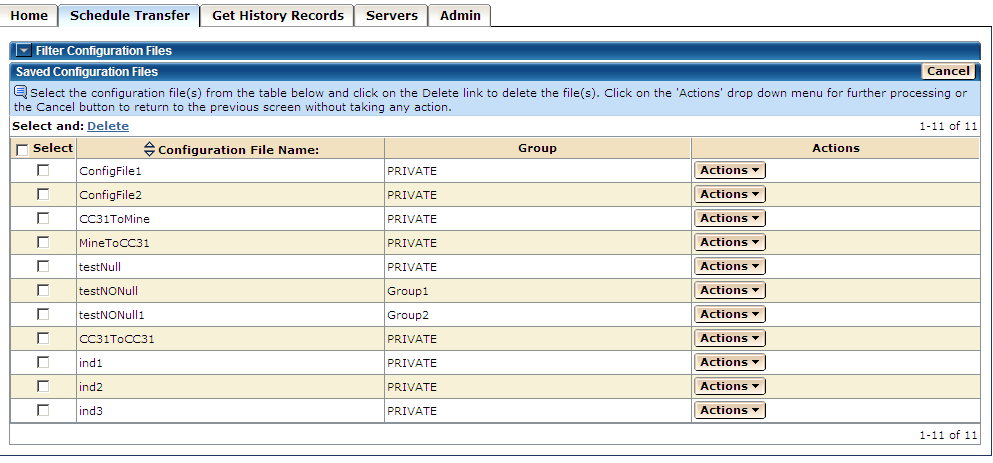
- Click the Display action link from the Actions drop-down list for a listed configuration file.
The transfer records for the selected configuration file are displayed in a table on the main Schedule Transfer page.
Notes:
- You can click the Display & Append action instead and the transfer records for the selected configuration file are appended to the transfer records already listed in the table, but the local server information on the screen remains unchanged.
- If you click the Cancel button on this page, the process is canceled and the system returns to the previous page.
- You can then edit and/or submit the transfer records as described earlier in this chapter. When you edit a transfer record using the Edit or Wizard action link, the local user password will be cleared if the local user ID is not the same as the ID of the logged in user,

