Previous Topic: Wizard Link

Next Topic: Save Transfer Records in a Configuration File

Submit Transfer Records for Scheduling

After building transfer records, you can submit them for scheduling and get the statistics of the scheduled records.

To submit transfer records

  1. Click Schedule Transfer.

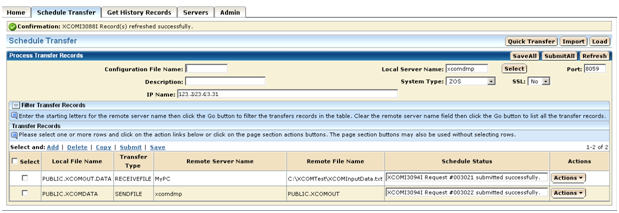
    The main Schedule Transfer page appears.

  2. For the Quick Transfer function, click the Submit button after building the transfer record on the Quick Transfer screen (see Quick Transfer above).
  3. For the Edit function, build the transfer record (see Edit Link above).
  4. For the Wizard function, build the transfer record (see Wizard Link above).
  5. Enter the information for the local server on the main transfer screen (if it has not been already entered).
  6. Select the built transfer records from the Transfer Record table on the main Schedule Transfer screen.
  7. Click Submit.

    The records are submitted and a confirmation message is displayed at the top.

    Note: If you want to submit all of the records in the table, you can click the SubmitAll button instead of performing Step 5 and Step 6.

  8. Click the Refresh button to display the status of the transfer records in the status column of the submitted records in the table.
  9. Click the Refresh action link for a submitted transfer record to get the record’s status in the status column of the record.

    Note: The request number of the submitted transfer record is also returned in the status. If you click the Refresh button before the request number is returned from the CA XCOM Data Transport base server, then a “schedule in progress” message is displayed in the Schedule Status column and you must click the Refresh button or link again until the request number is returned from the server.
    Submit Transfer Records for Scheduling