

|
|
|
You can use the Process Servers page to import already exported servers file and display the server information on the screen.
To import servers from export file
The Home page appears.
The Admin page appears.
The Process Servers page appears.
The Import Servers page appears.
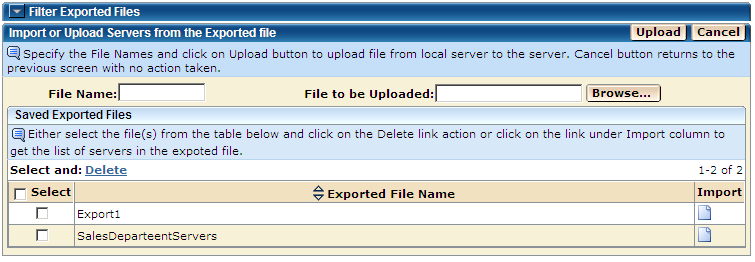
The information for the servers in the selected Exported file is displayed on the Add New Servers page. You can check the information, update it, and save the servers in the Servers database as described in the Add New Servers section.
The Import Servers page also lets you use the following options:
xxxxx/loginuserid/ExportedServers
The value of the HOMEDIRECTORY parameter of the EXPORT element in the Global Parameters file.
The ID of the logged in user (or the first 60 characters of the logged in user ID if the user ID is more than 60 characters long).
| Copyright © 2011 CA. All rights reserved. | Tell Technical Publications how we can improve this information |