

|
|
|
The tabular screens in the following sections provide a leading filter section to enable users to specify wildcard filter values for key columns in the table. When any filters are set, the only rows presented should be those for which the value of each filtered column conforms to the specified filter. A value of * or null for any filter value should be treated equally, as an indication that no filtering should occur for the related data column. When all filter values are either * or null, the presented data should include all table rows, without any filtering.
When a user logs in and gets to a screen with tabular data for the first time, if the total number of data rows is less than or equal to the effective Rows/Page value (that is, the number of rows that can be accommodated on a single page), the screen is displayed showing all of the data rows as a single page, and with the leading filter section hidden (collapsed). However, if the total number of data rows is greater than the effective Rows/Page value, the initially displayed screen shows only an open filter section but without any data rows. The user must then enter and submit a filter selection, and then data rows are displayed according to the submitted filters.
The effective Rows/Page value is displayed and can be changed by the user on the left pane of the Home page. The maximum and default Rows/Page values are specified in the Global Parameters file by the Super Admin.
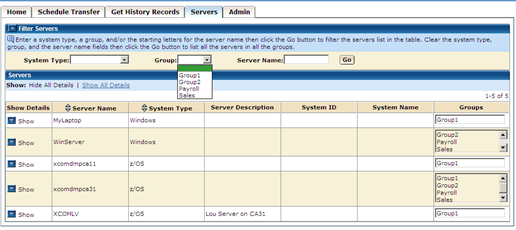
The filter section can be expanded/collapsed at any time by clicking the arrow on the top left of the section. The example below shows the filter section for the Servers table. The user can specify the filter criteria for System Type, Group, and starting characters of the Server name in the filter section and then click Go to filter the data in the table. Leaving the fields blank, lists all the available servers.
| Copyright © 2011 CA. All rights reserved. | Tell Technical Publications how we can improve this information |