Installing and Uninstalling › Installer Dialogs › Step 2: Select the Components to Install
Step 2: Select the Components to Install
After you accepted the license agreement, you are prompted to select the type of installation:
- Typical
-
Installs all components.
- Custom
-
Enables you to select which components to install.
You select a custom installation under certain circumstances, for example:
- You have already installed the Interface Server, for example:
- You have installed CA XCOM Gateway previously.
- You have installed and uninstalled CA XCOM Management Center previously, but did not uninstall the Interface Server.
- You do not want to install the CA Embedded Entitlements Manager (EEM) component because you would prefer CA XCOM Management Center to use an EEM server that is installed on a different machine.
To select the components to install
- On the Choose Install Set dialog, click either Typical or Custom, and then Next.
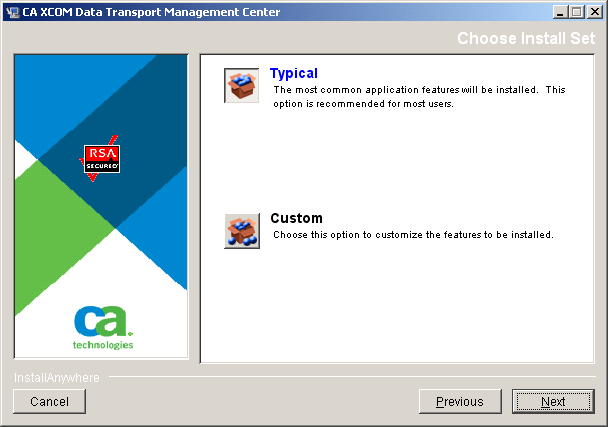
- If you selected Typical, the Choose Install Folder dialog for the Interface Server opens.
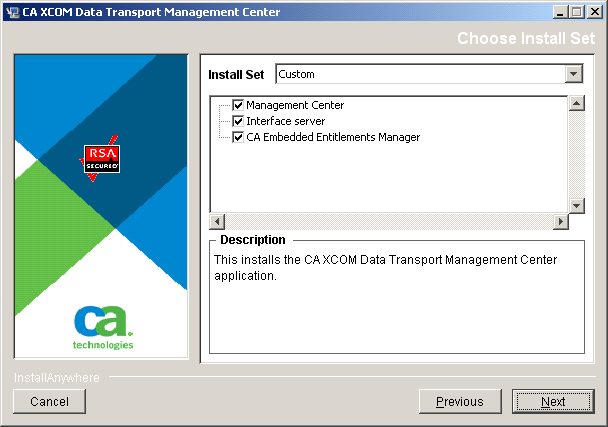
- If you selected Custom, you are prompted to select the components to install:
Continue with the next step.
- (Optional) Select the components you want to install, and click Next.
If you selected to install the Management Center but not the Interface Server, the Interface Server Configuration dialog opens.
Otherwise, dialogs for the selected components open in the following sequence: Interface Server and then Management Center.

