

|
|
|
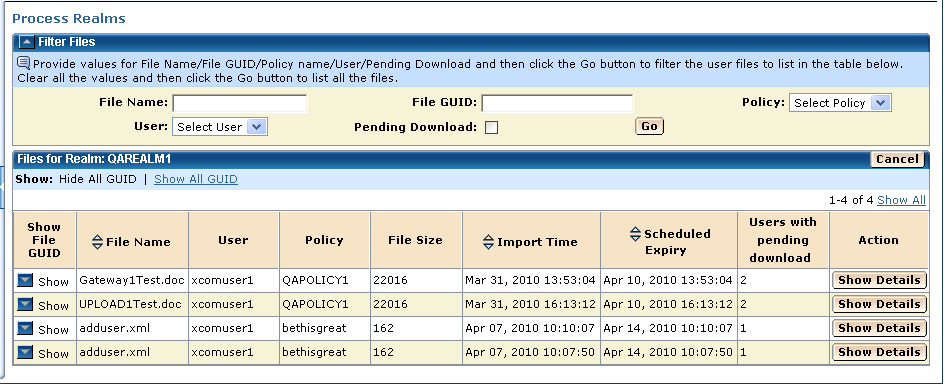
You can use the Admin page to display stored files in a realm.
To display stored files in a realm
The Home page appears.
The Admin page appears.
The Process Realms page appears.
A drop-down list appears.
The Show File by Policy page appears, listing the stored files that are associated with the selected policy.
| Copyright © 2011 CA. All rights reserved. | Tell Technical Publications how we can improve this information |