

You can define an external job to create a dependency between two jobs in different Applications.
Follow these steps:
The Application appears in the workspace.
Note: If the external job runs on the same scheduling manager as the home Application, use the External-Same Scheduler job. If the external job runs on a different scheduling manager than the home Application, use the External-Other Scheduler job.
The external icon appears on the Application workspace view.
The Basic page of the job definition dialog opens.
Specifies the name of the external job. It must be the same name as the job in the home Application.
(Optional) Specifies the qualifier of the external job. It must be the same qualifier as the job in the home Application.
(Optional) Specifies the name of the home Application that submits the job. The server submits the external job in the distant Application if the Application you specify submits the job.
(Optional) Specifies when the job is scheduled to run in the home Application. The Application containing the external job does not have to be active when the job in the home Application completes. If the job in the home Application is (was) submitted at the scheduled time, the server submits the external job.
Examples: 8AM TODAY, TODAY
Note: This field resolves to a specific time. For example, TODAY resolves to midnight today, not anytime today.
(Optional) Specifies the start of an explicit range of time when the job is scheduled to run in the home Application. Use this field with the to field.
Example: NOW LESS 2 HOURS
(Optional) Specifies the end of an explicit range of time when the job is scheduled to run in the home Application. Use this field with the From field.
Example: NOW PLUS 2 HOURS
If the job in the home Application is submitted within the scheduled range of time, the server submits the external job in the distant Application. For example, using the preceding criteria, the server submits the external job in the distant Application if the job in the home Application is (was) submitted within 2 hours of the current time. When the job completes successfully in the home Application, the server posts the external job complete in the distant Application and releases its successors.
Specifies the name of the agent that you are using to route information between the schedulers.
Specifies the name of the other scheduler. This scheduler runs the home Application that submits the job that the external job depends on.
The external job is defined.
Example: Synchronize Applications
Suppose that job X in APPL1 runs with an unpredictable frequency, and you want the server to complete external job X in APPL2, if job X in APPL1 ran in the past 24 hours or is scheduled to run in the next 24 hours. The following illustration displays the dependency between the two Applications:
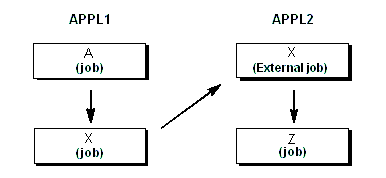
You would create two Applications as follows:
Example: Set Up a Dependency Between Two CA Workload Automation DE Systems
Suppose that job X defined in Server Y depends on job B defined in Server X. Server X runs the home Application to submit job B. The following illustration displays the dependency between the two CA Workload Automation DE systems.
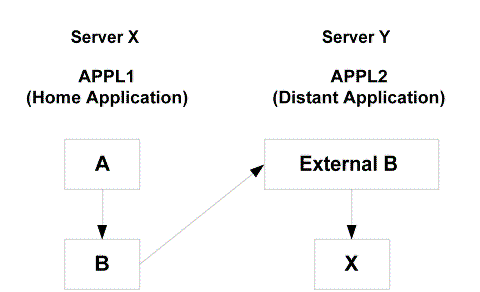
You would create two Applications as follows:
Note: For more information on integrating two CA Workload Automation DE systems, see the Implementation Guide.
|
Copyright © 2014 CA Technologies.
All rights reserved.
|
|