

As a scheduler, you want to quickly create a new CA Workload Automation AE job that has many of the same properties as an existing SAP job on your SAP server. You can use the SAP drag-and-drop feature to create an SAP R/3, SAP Batch Input Session, SAP BW Process Chain, or SAP BW InfoPackage job. The new job can be scheduled on the CA Workload Automation AE server you commit it to.
Note: This process uses the SAP Filters and SAP Filter Results panes. If they are not visible, you can display them by selecting any one or more of the following job types using the Customize dialog: SAP R/3, SAP Batch Input Session, SAP BW Process Chain, or SAP BW InfoPackage. Additionally, verify that Hide SAP Drag and Drop Panes in the Customize dialog is not checked.
The following scenario walks you through the process of creating a new filter in the SAP Filters pane, using the filter to find the appropriate SAP job, creating a new job by dragging a job from the Filter Results into the Application Editor workspace, modifying the properties of the new job, and committing the job.
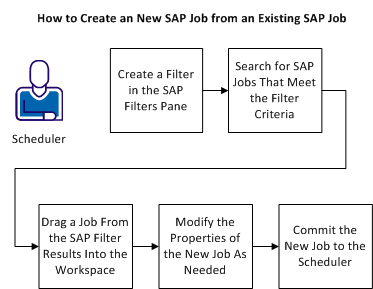
To create a new CA Workload Automation AE job from an existing SAP job, follow these steps:
Example: Create a New CA Workload Automation AE Job Based on an Existing SAP BW Process Chain Job
Suppose you have an SAP BW Process Chain job that runs a sequence of background processes on your SAP system. You want to create a new CA Workload Automation AE job definition that has many of the same properties of your existing SAP job; however, you want it to run a different BW process chain at a different time. To do this, you first create an SAP filter to find your existing job and drag that job into the workspace. Then you can change the job name, the chain identifier, and the date and time dependencies. Finally, you must commit the job to the scheduler. The new job is ready to run.
|
Copyright © 2013 CA.
All rights reserved.
|
|