

In CA View, you can create a multi-level index of pages within a SYSOUT or report, which becomes a part of the logical view definition. When you archive copies of this SYSOUT or report, CA View examines each page for these indexing criteria, and creates an additional selection list, showing each value that has appeared in this indexing field. You can select the entire report or SYSOUT for viewing, or select only the pages that contain any one of the given index fields.
The following graphic shows how a report user can specify search to locate and create page indexes.
Note: The role Report User also includes and denotes the roles of System Administrator or End User.
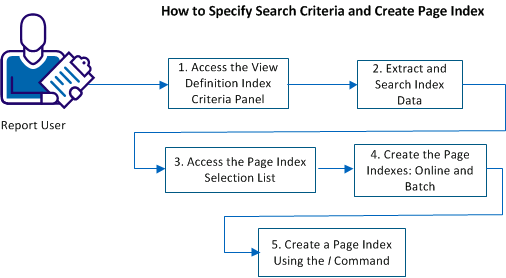
Follow these steps:
You can access the View Definition Index Criteria panel to specify extract and search criteria for index data.
Follow these steps:
The View Selection List panel displays.
Example:
Command ===> DEF VIEW
Press Enter to display the View Selection List.
You can now modify an existing view.
The View Definition panel for the new view displays.
Note: To display the View Definition panel, you can also go to the sysout selection list, make your selection from the View Selection List, press Enter, and type VIEW on the command line.
The View Definition Index Criteria panel displays. You can now specify Search or Extraction specifications.
The View Definition Index Criteria panel defines the methods for extracting index data from a report. The panel contains the following options:
The extraction and search specifications are defined by the entries within the table.
Follow these steps:
You can now create entries.
The entries are modified.
Index data can be obtained from a fixed or floating location on a page. A maximum of eight locations can be extracted from a page. If the location of the index data varies from page to page or multiple occurrences of the index data are contained within a page, search specifications can be used to determine the location of that index data.
The extraction specifications of the Page Indexing Criteria define the location and length at which to extract index data from a report page. You can extract a maximum of eight locations from a page. The maximum combined length is 252 bytes. You can specify an index name for each location to uniquely identify the contents of the data.
An index can also be the composite of multiple locations. When you define a composite index, specify the index name for the first location and leave it blank for the remaining locations. Cross report indexes require an index name.
Use the WHERE command to determine the location of the cursor position in the SYSOUT or report. This command is available only in the native browse mode. When you invoke the WHERE command, a message displays the line and column number of the cursor.
For example, type WHERE on the command line, place your cursor on the text criteria in the report, and press Enter. A message similar to the following one appears in the top right-hand corner of the panel:
LINE=00001 POS=00028
You can access the View Definition Index Criteria panel to specify extraction criteria for index data.
Follow these steps:
The search specifications of the Page Indexing Criteria perform the following two functions:
Search specifications identify a text string that is to be found within a report page. The search can be performed on specific lines and columns or relative lines and columns. If the search text for specific lines and columns is not found on a report page, index data is not extracted from that page. The relative search text is considered optional and does not necessarily have to appear on every page.
Search specifications can also be used to locate multiple occurrences of index data.
You can access the View Definition Index Criteria panel to specify search criteria for index data.
Follow these steps:
When search text is found within a report page, the location of that text is maintained and accessible through a reference symbol. This reference symbol can be used in subsequent search specifications or extraction specifications. This reference is designated in the line or column as r+n where r is the reference symbol and n is the number of lines or columns from that location. For column fields, r-n can also be specified.
Note: The line and column cannot specify different reference symbols.
You can use the View Selection panel to access the page index selection list and locate a specific page index value.
Follow these steps:
If there is an exact match between the value entered and a page index value, that text is displayed directly (bypassing the Page Index Selection List). If there is not an exact match, the Page Index Selection list is presented and you are positioned as close as possible to the value entered. If the logical view selected does not contain a page index, the index value is ignored.
This list displays all of the values that the product found for the selected index. This selection list allows you to display either all of the pages in the SYSOUT or report, or display only those pages selected by the chosen index. The Page Index Selection list supports the LOCATE command which you can use to scroll directly to a particular page index value.
Text for the LOCATE command is converted to uppercase. This is true if the value is entered on either the command line of the Page Index Selection list or in the Index Value field of the View Selection panel. To retain the case of the entered value, enter it as a text string (t'textstring'). For example:
Index Value ===> abCDefg
locates "ABCDEFG".
Command ===> LOCATE t'abCDefg'
locates "abCDefg".
You can create a page index in batch or online mode.
After you define page indexing criteria for a report, CA View automatically creates the page index when it archives subsequent versions of the report.
You can manually create a page index for a report that is already archived or create additional indexes for a report. Because the report must be on primary DASD, you may have to load it back to DASD first. If the report was already backed up to tape or optical disk, it is backed up again with its index. If you do not want the reports to be written to tape or optical again, you can use the DI command to delete any indexes you created.
Follow these steps:
Note: For more information about SARBCH INDEX, see the Reference Guide.
You can now build or rebuild indexes.
You can create a batch job to build or rebuild the page indexes online.
Follow these steps:
The JCL created message appears in the upper-right corner of the panel.
An archived report must reside on the primary disk database to be indexed. If a report is on tape or secondary disk, use the L (load) command, followed by I (index).
|
Copyright © 2015 CA Technologies.
All rights reserved.
|
|