

To help eliminate mismatches during a run, you may occasionally need to change an existing rule or add another rule to the ruleset for a test stream. (A common example is forgetting to create a rule for a change.)
Follow these steps:
The Applied Rules panel is displayed as shown next.
Note: When adding a rule to a ruleset, remember that rules are applied in the order specified in the ruleset.
----------------------------- APPLIED RULES --------------------------14:12:16
 ENTER COMMAND ===>

 INPUT TEST STREAM: TCADS.CCC.ORDERAPP.001                  CURRENT RECORD:  2
                                                            LINE   1 TO  6 OF  6

 B-BROWSE   E-EDIT
   OBJECT      TYPE ROW  COL LEN OP  VALUE FROM THE MODEL SCREEN/DESCRIPTION
 _ RULESET     T/S                   TCADS.CCC.ORDERAPP.001
 _  RULE                             R1                               <APPLIED>
 _   FLD-RECOG                   EQ  CAROL'S COOKIES COMPANY______ <RECOGNIZED>
 _    MOVED    OUT    1    3   2     98______________________________ <APPLIED>
 _    NEW      OUT    1   13   2     19______________________________ <APPLIED>
 _    CHANGED  OUT    1    2   3     7.0_____________________________ <APPLIED>


  F1-HELP     F2-ROTATE     F3-END     F4-RETURN     F7-UP     F8-DOWN
This panel is similar to the Browse Rules—Summary panel, except that it lists all of the rulesets associated with this test stream and indicates which rule within those rulesets has been recognized or applied. Fields that are important for adjusting rules during a run are explained next; see Chapter 8, Rules Function, for an explanation of the rest of the fields.
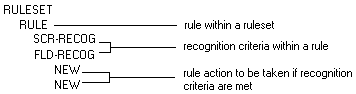
This column lists the rulesets, rules, and rule actions in the order they are to be applied. Objects are arranged in hierarchical order with ruleset at the top of the hierarchy and rule actions being at the bottom. An illustration of the hierarchy appears next.
Indicates which type of ruleset or rule this is. Valid types for ruleset are:
Test Stream
Application
System
Applies to this output screen
Applies to the next input screen
These messages indicate whether the rule has been applied during this run (<APPLIED>), or whether screens have been located that match the recognition criteria specified (<RECOGNIZED>).
If you have the proper security authorizations, you can take several actions from this panel. You can:
See the chapter "Rules Function" for detailed instructions on browsing, editing, and deleting rules and rule actions. The procedure for adding a rule or rule action is covered next.
|
Copyright © 2012 CA.
All rights reserved.
|
|