

Option 1, Manage system activity, on the Operator Main Menu lets you do the following:
Enter 1 on the command line of the Operator Main Menu to select the Manage system activity option. CA VM:Backup displays the Manage System Activity screen. This screen displays the following information about active and pending jobs:
This column lists the name of each job that is executing or waiting to be processed. End-user and administrative SFS restore requests are identified by RESTORE. Job template file-defined backup and restore jobs, including those submitted by an authorized client such as CA VM:Archiver, are identified by the job template file name.
This column indicates the status of the job, as shown in this table:
|
Status |
Description |
|---|---|
|
Compile |
CA VM:Backup is compiling the job template file for the job. |
|
Ended |
CA VM:Backup has finished processing the job. |
|
On hold |
CA VM:Backup is not currently processing the job. You must release the job so that CA VM:Backup can process it. |
|
Ordered |
CA VM:Backup has moved the job to the front of the job queue in response to the ORDER command. |
|
Released |
The job has been released from on hold status and CA VM:Backup will process it as soon as possible. |
|
Restarted |
CA VM:Backup has restarted the job. |
|
Running |
CA VM:Backup is currently processing the job. |
|
Waiting |
The job is ready to run and is queued for processing. When a job is waiting, no further operator action is needed. However, resource availability might delay processing. |
This column indicates whether a job is a system backup, restore, MPC, REINIT, or AUTOCAT job.
This column displays the time CA VM:Backup began processing the job.
This column indicates the following for each type of job:
|
Job |
Column indicates: |
|---|---|
|
Backup |
Total number of domains included in the backup job and number or domains backed up so far. |
|
Restore |
Detailed information about the backup instances used in this job. In a chain of incremental backup jobs, a domain might be represented once or as many times as there are backup jobs in the chain, depending on whether the domain changed before the incremental backup. When CA VM:Backup builds a restore job, it creates a restore selection list entry for each backup instance from which there is data to be restored from that domain. The list of all of these restore selection entries represents the actual number of times CA VM:Backup must obtain access to a domain to restore the data contained in one backup job within the incremental backup chain. The Manage System Activity screen displays the cumulative total of all restore selection list entries for all domains involved in the job and how many have been processed up to this time. This provides an accurate representation of the job's progress. |
|
MPC |
Total number of input domains CA VM:Backup is to copy and number of input domains processed so far. |
|
REINIT |
Total number of tapes CA VM:Backup is to reinitialize and number of tapes reinitialized so far. |
This column indicates either the user ID that submitted the job or certain processing options with which the job was submitted. Option e means the job is an exclusive job, p means it is a priority job, and b means it is a job that backs up CA VM:Backup. Toggle between these two columns by pressing PF5 ( [Options] when the Job Origin column is displayed, [Origin] when the Job Options column is displayed). For information on job processing options, see SUBMIT Command.
This column indicates the job identification number assigned to this job by CA VM:Backup.
CA VM:Backup displays the message VM:Backup is Suspended in the upper right corner of the Manage System Activity screen when CA VM:Backup job processing is temporarily halted, either through the SUSPEND command or operator screens.
CA VM:Backup automatically updates the information on this screen every 10 seconds. To remove outdated information, press PF2 (Refresh).
You can display additional information on some jobs by pressing PF6 (Contents). For backup jobs, CA VM:Backup lists up to 10 file spaces or minidisks contained in the job. For restore jobs, CA VM:Backup lists up to 10 paired sources and targets. This option allows you to distinguish between multiple end-user restore jobs listed on the screen.
CA VM:Backup may be waiting for a tape to be mounted or for a minidisk to be detached before continuing a job. You can use the REVIEW command on the Manage System Activity screen to see whether there are any outstanding messages from CA VM:Backup for a job. Enter review in the Command column next to the backup or restore job whose messages you want to check.
When you enter the REVIEW command for a particular job, CA VM:Backup displays the View Outstanding Requests screen. This screen lists any messages relating to the job you selected along with the time the message was issued and the user ID to which it was sent.
CA VM:Backup automatically updates the information on the View Outstanding Requests screen every 10 seconds. To remove outdated information, press PF2 (Refresh).
The REVIEW command allows you to view outstanding messages only. If a response is required, contact the user to whom CA VM:Backup originally sent the message. If your user ID is authorized to receive and respond to CA VM:Backup messages, you can respond to CA VM:Backup yourself through Option 2, Respond to VM:Backup requests, on the Operator Main Menu. For more information about reviewing and responding to CA VM:Backup requests, see Responding to CA VM:Backup Requests.
Detailed status information is available for all jobs as they run. You can use the DETAIL command on the Manage System Activity screen to see this information for a currently running job. Enter detail in the Command column next to the job for which you want to see additional information. CA VM:Backup displays one of the following screens depending on the type of job you selected:
The Backup Job Status Information screen displays detailed information about the job that you selected on the Manage System Activity screen. The top part of the screen displays the following information:
The lower part of this screen shows in detail the status of up to four streams in the job. Each stream is displayed using two lines that start with the stream number. Use PF8 Forward and PF7 Backward to see the state of all 15 possible streams.
The first line displays the domain that the stream is backing up followed by the elapsed time for that domain and the total number of tape blocks that are written to that stream. Domains are identified using a type code:
The second line indicates the stream tape mount elapsed time, if any, and the state of the linker process that is associated with the stream. Both can indicate problems that hold up the processing of the stream.
The linker state is typically "n/a" but problems may occur if the linker is trying to quiesce (Q) or link (L) a minidisk that will be backed up after the current domain backup is complete. This linker state may prevent the current domain from being completed too. In this case, the normal linker status of "n/a" changes to Q or L. These statuses indicate that the linker is quiescing or linking to a minidisk that the stream will back up shortly. The minidisk user ID, the vdev, and the elapsed time that the linker has been waiting follow this status.
CA VM:Backup automatically updates the information on this screen every 10 seconds. To remove outdated information, press PF2 (Refresh). Use PF8 (Forward) and PF7 (Backward) to scroll through the list of current domains.
The top part of the Restore Job Status Information screen displays the job name you selected and the status information from the Manage System Activity screen. The lower part of the screen provides the following detailed status:
This column indicates how long the restore job has been running.
This column indicates the volser of the tape that CA VM:Backup is currently processing.
This column indicates the data set sequence number of the data set that CA VM:Backup is currently processing.
This column indicates the user ID and virtual address of the minidisk or a shortened version of the directory name of the directory that CA VM:Backup is currently scanning. For information about how CA VM:Backup displays the directory name, see Shortened Version of the Directory Name.
This column displays the type of backup (full or incremental) and the date and time of creation of the backup from which CA VM:Backup is currently scanning. The number of backup instances already scanned and the total number of backup instances for the domain currently being scanned is also displayed.
This column indicates the next domain that CA VM:Backup will restore for this restore job. If the domain is a directory, CA VM:Backup displays a shortened version of the directory name. See Shortened Version of the Directory Name.
This column displays the target (file space, directory, minidisk, or reader) to which CA VM:Backup is restoring the data from the indicated backup instance. If CA VM:Backup is restoring to a directory, it displays a shortened version of the directory name. See Shortened Version of the Directory Name.
If CA VM:Backup is restoring data to a minidisk and is waiting for users to detach links to this minidisk before restoring data, CA VM:Backup displays waiting for link next to the target minidisk. For restore jobs defined by a restore job template file, CA VM:Backup also sends message 797I to the local console and the tape operator to identify the linked target minidisk.
This column displays the type of backup (full or incremental) and the date and time of creation of the backup from which CA VM:Backup is currently restoring. The number of backup instances already restored and the total number of backup instances for the domain currently being restored is also displayed.
If a catalog does not exist for the backup instance from which CA VM:Backup is restoring data, CA VM:Backup must scan the tapes, then mount them to read the tape labels before restoring the data. While CA VM:Backup is scanning the tapes and reading the tape labels, it displays the message Scanning tapes; no detail available.
CA VM:Backup automatically updates the information on this screen every 10 seconds. To remove outdated information, press PF2 (Refresh).
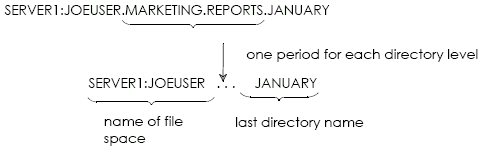
To shorten the fully-qualified directory name of an SFS directory, CA VM:Backup displays the name of the file space, followed by a period for each directory level, followed by the last directory name.
|
|
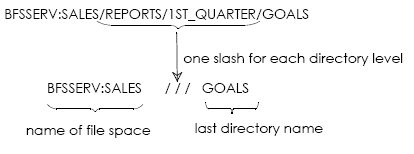
To shorten the full directory pathname of a BFS directory, CA VM:Backup displays the name of the file space, followed by a slash for each directory level, followed by the last directory name.
|
|
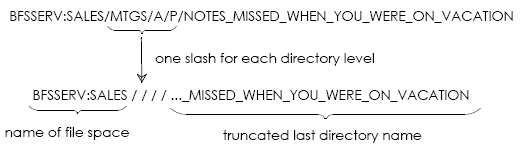
If the shortened version of a BFS full directory pathname is too long, CA VM:Backup precedes the last directory name with ... and truncates characters from the front of the last directory name as needed.
|
|
The top part of the Merge/Purge/Copy Job Status Information screen displays the job you selected and the status information from the Manage System Activity screen. The lower part of this screen provides the following detailed status:
This row indicates how long the MPC job has been processing.
This row indicates the volsers of the input tape and its tape copies that the MPC job is currently processing. If CA VM:Backup is ready to process the tape but the tape has not yet been mounted, CA VM:Backup displays (Waiting for tape mount).
This row indicates the data set number of the data set that CA VM:Backup is currently processing on the input tape. This row is blank if CA VM:Backup is waiting for an input tape to be mounted or if no input tape is mounted.
This row describes the domain on the input tape that is being processed. CA VM:Backup displays one of the following types of domains followed by the name of the domain:
If CA VM:Backup is not processing a domain, this field is blank.
This section of the screen lists:
If CA VM:Backup is waiting for one or more output tapes to be mounted, CA VM:Backup displays (Waiting for tape mounts for groups) and displays an asterisk next to the group for which tapes need to be mounted.
CA VM:Backup automatically updates the information on this screen every 10 seconds. To remove outdated information, press PF2 (Refresh).
The top part of the REINIT Status Information screen displays the job you selected and the status information from the Manage System Activity screen. The lower part of this screen provides the following detailed status:
This row indicates how long the REINIT job has been processing.
This row indicates the volser of the tape that CA VM:Backup is currently reinitializing.
This row indicates the volser of the next tape that CA VM:Backup will reinitialize.
CA VM:Backup automatically updates the information on this screen every 10 seconds. To remove outdated information, press PF2 (Refresh).
For CATSEARCH, VOLSER, MPC, and REINIT jobs, you can use the VOLIST command on the Manage Systems Activity screen to see a list of the tapes required for the job so that you can have them on hand before the job starts. You cannot use this command for backup jobs or VOLSEARCH restore jobs.
Enter volist in the Command column next to the job whose tape list you want to see. CA VM:Backup displays the Tapes Required for a Restore Job screen, which lists the tapes.
The top part of this screen displays the job name, the number of tape mounts required, the request date and time, and the job origin. The bottom part of this screen displays the volsers of the primary tapes that may need to be mounted along with the volsers of any tape copies that can be mounted instead. CA VM:Backup adds a tape descriptor to each volser to help you determine whether it needs to be pulled. The tape descriptors for each job type are described in the following section.
Indicates a DASDtape that CA VM:Backup will mount without your assistance.
Indicates a DASDtape that may be mounted. CA VM:Backup cannot determine whether the tape is needed because the catalog is either condensed or encrypted.
Indicates physical media that you must pull to fulfill the restore request.
Indicates physical media that you may need to pull. CA VM:Backup cannot determine whether it is needed because the catalog is either condensed or encrypted.
Indicates physical media that you must pull, but CA VM:Backup cannot locate it. The catalog specifies this volser, but it does not belong to a CA VM:Backup resource pool and CA VM:Backup is not interfaced with CA VM:Tape.
Indicates physical media that you may need to pull. CA VM:Backup cannot determine whether the tape is needed because the catalog is either condensed or encrypted. Also, CA VM:Backup cannot locate the tape because the tape does not belong to one of its resource pools and CA VM:Backup is not interfaced with CA VM:Tape.
Indicates a DASDtape that CA VM:Backup will mount without your assistance.
Indicates a DASDtape base tape; CA VM:Backup may request more tapes not listed in tape pull list to complete the MPC job.
Indicates a reel, cartridge, or enhanced-capacity cartridge that you must pull to fulfill the restore request.
Indicates physical media that is a base tape. CA VM:Backup may request more tapes not listed in tape pull list to complete the MPC job.
Indicates physical media that you must pull, but CA VM:Backup cannot locate it. The job specifies this volser, but it does not belong to a CA VM:Backup resource pool and CA VM:Backup is not interfaced with CA VM:Tape.
Indicates physical media that is a base tape and CA VM:Backup cannot locate it. The job specifies this volser, but it does not belong to a CA VM:Backup resource pool and CA VM:Backup is not interfaced with CA VM:Tape. CA VM:Backup may request more tapes not listed in tape pull list to complete the MPC job.
Indicates a DASDtape that CA VM:Backup will mount without your assistance.
Indicates a reel, cartridge, or enhanced-capacity cartridge that you must pull to fulfill the restore request.
Indicates a reel, cartridge, or enhanced-capacity cartridge that you must pull, but CA VM:Backup cannot locate it. The catalog specifies this volser, but it does not belong to a CA VM:Backup resource pool and CA VM:Backup is not interfaced with CA VM:Tape.
You can cancel jobs at any time using the CANCEL command on the Manage System Activity screen. Enter cancel in the Command column next to the job you want to cancel. CA VM:Backup ends this job and it is not processed.
You can temporarily interrupt a job at any time, either before it begins or during processing, using the HOLD command on the Manage System Activity screen. You can interrupt jobs whose status is anything other than compile. Enter hold in the Command column next to the job you want to put on hold.
You can start or restart jobs that are on hold using the RELEASE command on the Manage System Activity screen. Jobs that are on hold are listed on this screen with the status on hold. Enter release in the Command column next to the held job you want CA VM:Backup to start or restart.
When you release a job that was placed on hold before it began processing, CA VM:Backup starts it from the beginning. When you release a job that was placed on hold during processing, the point at which CA VM:Backup restarts the job depends on whether restart recovery is enabled and whether the job is a backup, restore, MPC, or REINIT job.
If restart recovery is not enabled, CA VM:Backup restarts the job from the beginning. If restart recovery is enabled, CA VM:Backup restarts interrupted jobs as follows:
Jobs that are not on hold automatically run in the order in which they appear on the Manage System Activity screen. You can use the ORDER command to move a job to the front of the waiting job queue. Enter order in the Command column next to the job you want to move. CA VM:Backup moves the job to the beginning of the queue and changes its status to ordered. To see the jobs listed in the new order, press PF2 (Refresh). When you refresh the screen, the jobs display their original statuses.
You can reorder more than one job at a time using the line-mode ORDER command. See ORDER Command.
|
Copyright © 2014 CA Technologies.
All rights reserved.
|
|