

|
|
|
After logging in to the Windows Client, you need to define the z/OS servers that you plan to use.
To define a z/OS host
 or View Host Definition
  icon.
icon.
The Host Definition dialog opens, as shown in the following sample:
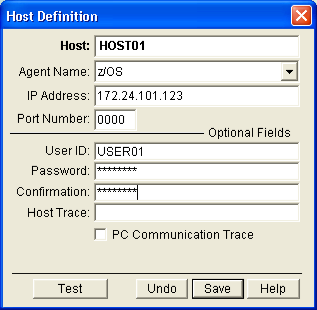
The Windows Client will advise you if your connection is successful.
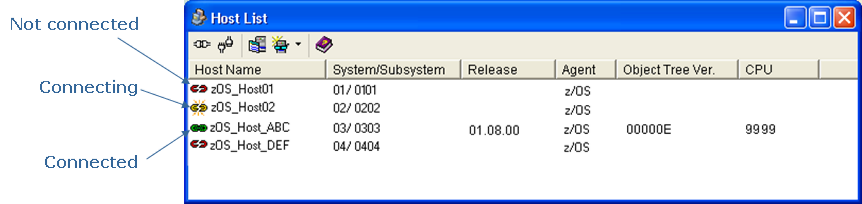
The Windows Client stores the host definition. The definition will be displayed in the Host List dialog. The Host List dialog displays defined hosts and their connection status, as shown in the following sample:
After you log in to the Windows Client you must connect and log in to a z/OS host.
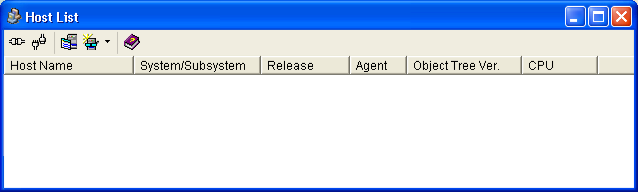
You connect and log in to a z/OS host from the Host List dialog. To display the Host List dialog click the Host List icon  in the toolbar at the top of the Main Window of the Windows Client. If no hosts have been defined, then the Host List dialog will be empty, as shown in the following sample:
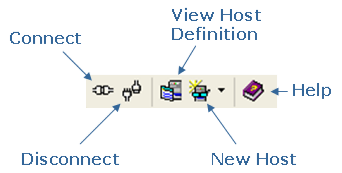
Host List Dialog Toolbar Options
The Host List dialog provides the following toolbar options:
To log in to a z/OS host
The selected row is highlighted.
 .
.
The connection status icon changes from the Not Connected icon  , to the Connecting icon
  .
.
If the user ID and password were not provided in the Host Definition, then the Host Login dialog is displayed, as shown in the following sample, and you must enter a valid user ID and password:
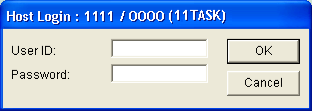
When the log in is complete, the connection icon in the Host List Dialog changes from the Connecting icon , to the Connected icon  .
.
Note: For more information about defining hosts and connecting to hosts, see the CA Vantage Windows Client User Guide.
| Copyright © 2010 CA. All rights reserved. | Tell Technical Publications how we can improve this information |