

|
|
|
CA GMI supports two methods of job submission:
You can submit jobs manually from the Windows Client, either immediately or at a scheduled time. When you create a job (JCL stream) to submit, you determine the type of job being submitted, the number of steps, and so on. The job can involve CA Tape Encryption, standard IBM utility programs, your own utility programs, or any combination of these. You can also use IEFBR14 jobs for testing purposes.
CA GMI helps you specify substitution variables (symbolic parameters) in the sample JCL you provide, allowing you to create generalized model JCL. Whenever CA GMI submits a job to the internal reader, it first scans the entire JCL stream, finds all the variable names, and substitutes the current values for all the variables that were used.
The Windows Client also has an Edit Member (and Submit) function under the z/OS menu in the Main Window. You can use the Drag and Drop feature to drag rows from object displays and drop them onto a JCL template in the Edit dialog. Substitution from the rows into the Variables in the template will be done.
CA GMI also has a feature for helping you manage JCL, the JCL Model List feature. You can use this feature to select JCL models to be used by objects or a group of objects using pattern matching. These models can be used to perform actions or storage management functions in batch jobs. The models can contain object variables that will be substituted upon request or at submit time.
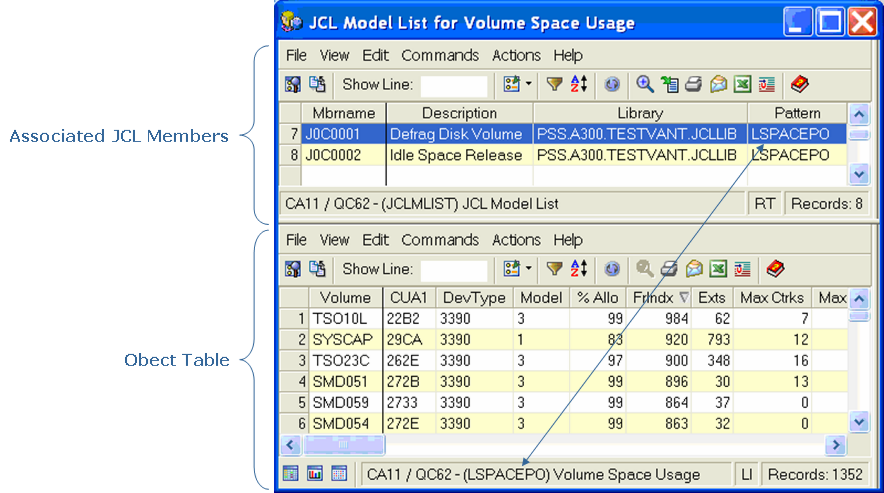
The following is an example of what you see when you select JCL Model List. The dialog that appears contains both the object table and the list of associated JCL members.
You can double-click a model line, and the “Substitution Variable List” for the object and the “PDS Member Editor” will open up with the JCL. You can then add variables by double-clicking them from the “Substitution Variables List” pane and then dragging selected lines from the source object to the “PDS Member Editor” pane. The JCL member created can then be substituted and submitted.
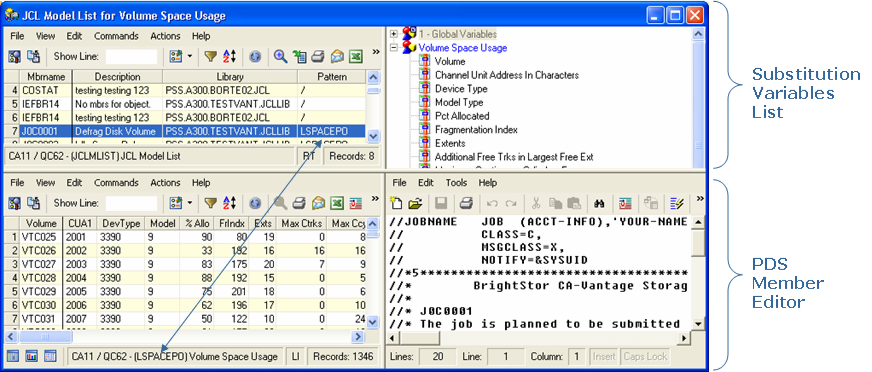
From the “PDS Member Editor” pane you can also manipulate and save the JCL member.
| Copyright © 2010 CA. All rights reserved. | Tell Technical Publications how we can improve this information |