

|
|
|
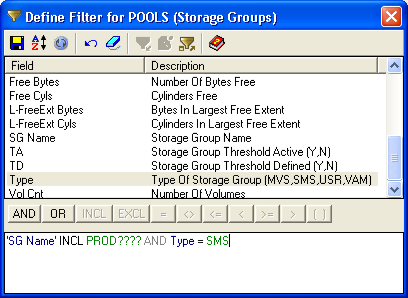
The Filter feature narrows the list of objects displayed in the table. The Windows Client lists the object fields in the Filter dialog in alphabetical order by field name. The Filter dialog guides you in the process of defining the filter expression by enabling and disabling the appropriate fields and controls at every step. The following is a sample of the Filter dialog:
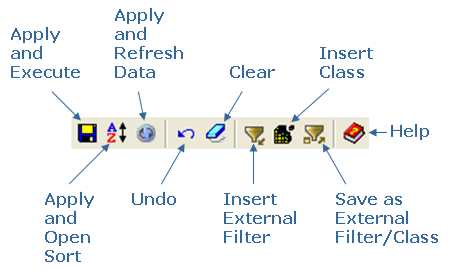
Filter Dialog Toolbar Options
The Filter dialog toolbar provides the following options:
A filter can be built from the fields of the objects displayed in a window by combining them into Boolean expressions. You can also use expressions that contain patterns with wildcard characters.
Refine your filter by using the AND/OR logical operators to combine several expressions is also possible. Use parentheses to group sub‑expressions.
You can enter a filter expression directly into the text box at the bottom of the Define Filter dialog or use the typing aids in the dialog. It is possible to edit any expression in the text box.
Note: To immediately view the effect of your filter you must click the Apply and Refresh Data icon  .
.
| Copyright © 2010 CA. All rights reserved. | Tell Technical Publications how we can improve this information |