

You can initiate data collection only from the Application Server.
To register a Legato NetWorker server using the CA SRM Backup Registration Wizard, follow these steps:
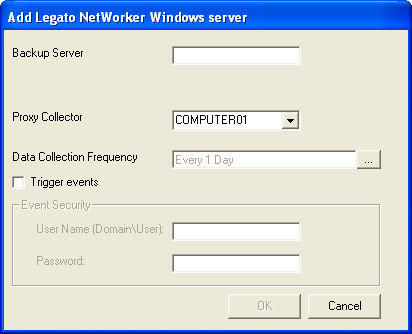
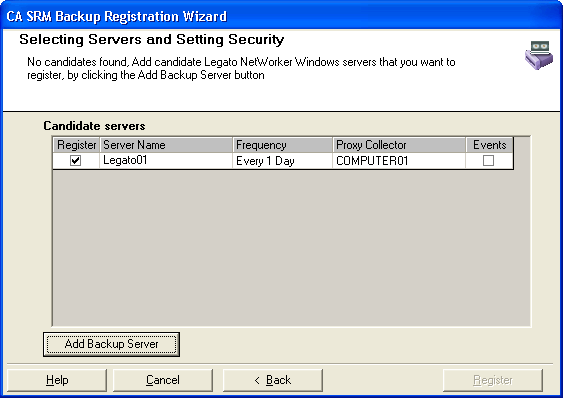
Clicking OK returns you to the Selecting Servers and Setting Security.
To attach a geographic location to the computer or server, select one from the drop-down list. You can manually add a location by clicking New Location. Type the location information and select a contact in the Create New Location dialog.
To attach an organization to the computer or server, select one from the drop-down list. You can manually add an organization by clicking New Organization. Type the organization name and select a contact in the Create New Organization dialog.
Add a contact by clicking New Contact in the Organization or Location dialogs. Type the name, telephone number, and email address of the new contact person in the Create a New Contact dialog. You can access your default address book by clicking the To: button and select the email address from there. Clicking OK returns you to the New Location or New Organization dialog.
|
Copyright © 2016 CA Technologies.
All rights reserved.
|
|