

Managing IBM Tivoli Storage Manager › Solving Problems › Examples of Problem Solving › Notifying Operator of Failed Backup Operations
Notifying Operator of Failed Backup Operations
To periodically scan the TSM logs for backup failures, follow these steps:
- From the Services folder of the CA SRM object tree, select TSM Message Scanner, as shown in the following diagram:
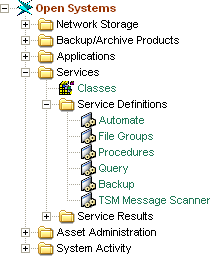
The TSM Message Scanner table opens.
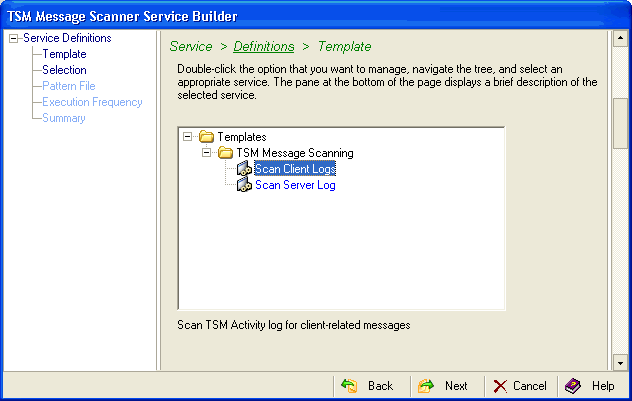
- From the TSM Message Scanner table main menu, select Configuration, New. The Template dialog of the TSM Message Scanner Server Builder Wizard opens. Expand TSM Message Scanning and select Scan Client Logs:
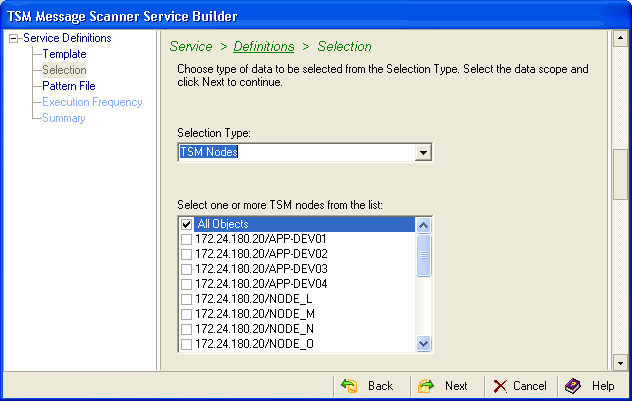
- Select TSM Nodes from the Selection Type drop-down list and check the boxes next to the objects that you want to scan for failures:
- Enter the e-mail address that you want the attention sent to in the To… text box. Check the Create Extract File box to save log entries that contain the lines that are not excluded by matching patterns:
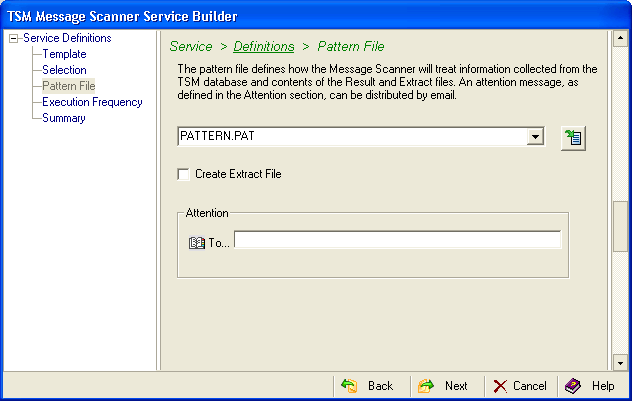
Note: You can edit the patterns file directly by clicking  .
.
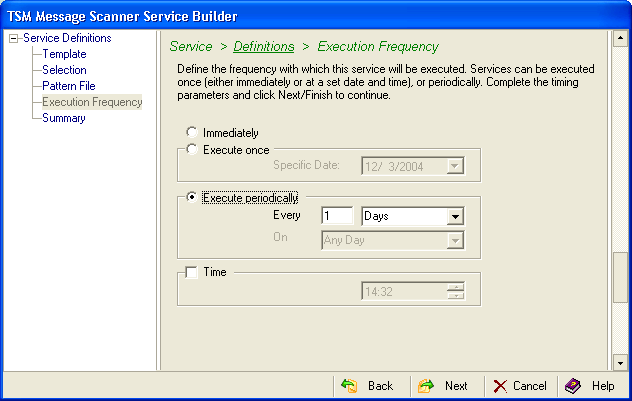
- Define when or how often you want to execute this service:
- The Summary dialog displays the parameters for the service that you have defined. If you want to make changes, click the Back button. If there are no changes, click Launch to name and then execute the service. Click Save to save the service without executing it. CA SRM runs the service according to the configuration shown in this dialog.
Note: If you make changes in the Advanced dialog, you will have to use it for all of your future changes. After you use the Advanced dialog for a service, you can no longer edit the service in the Service Builder Wizard.
- In the TSM Client Messages Scanning dialog enter a service name in the Name field. Optionally, enter a description of the service. Click OK.
Copyright © 2016 CA Technologies.
All rights reserved.
|
|