

Many organizations have unique scheduling requirements for weekends and holidays. You can tailor your weekend and holiday scheduling with CA SRM.
Follow these steps:
 on the Windows taskbar and select Show.
The Application Server toolbar opens.
Note: When the Application Server is running, the icon is activated. If the Application Server is not running, select Start, Programs, CA, Storage Resource Manager, Application Server.
The CA SRM Startup Options dialog opens.
Note: By default, Saturday and Sunday are selected.
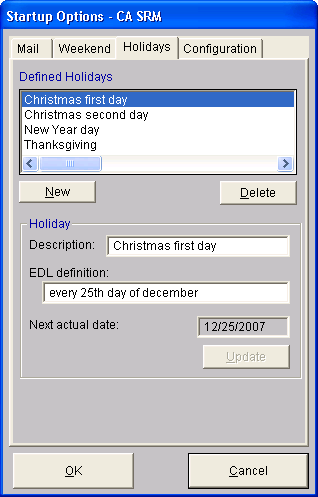
The Defined Holidays panel lists the days specified as holidays by your organization. Holidays appear in the Holiday Descriptions list.
Note: If you click a holiday, its definition (expressed in EDL format) appears in the EDL Definition text box.
Example: The following image example shows the Holidays tab with Christmas information specified:
Note: For more information about EDL definitions, see the Enterprise Definition Language in the User Guide.
The schedules on the Application Server are configured now.
|
Copyright © 2016 CA Technologies.
All rights reserved.
|
|