

To add a computer manually
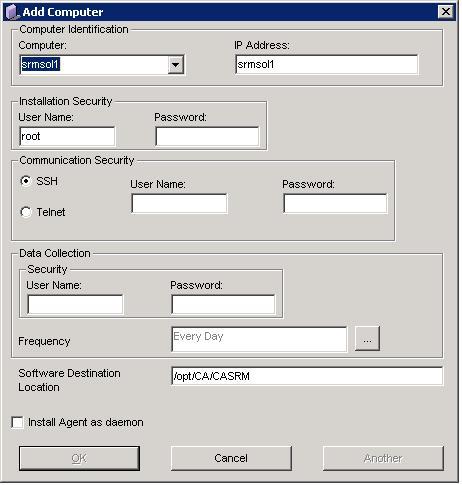
The computers discovered using SNMP gets populated in the drop-down list.
Type the IP address of the computer.
Type the user name and password of a user with Superuser privileges on the target computer.
Select the communications method, Telnet or SSH, and enter the user name and password of a user with access to the target computer.
Type the user name and password of a user that has access to the target computer.
Specify how often you want the target computer to collect the data. CA SRM collects data once each day. To change the frequency, click the ellipsis button to open the Data Collection Frequency dialog.
Type a directory on the target computer in which to install the CA SRM agent. You can specify any directory except a subdirectory of /usr/rsc.
Select this check box, if you want to install the agent as a daemon.
Note: RSCD agent listens on a fixed port 7167. Verify that no other applications use this port.
|
Copyright © 2016 CA Technologies.
All rights reserved.
|
|