

Managing Legato NetWorker › Defining an Automate Service
Defining an Automate Service
This section describes how to create Automate services using the Service Builder Wizard. The Service Builder Wizard contains predefined sets of sample services. After completing the configuration steps, the automate service is ready to use. If you want to tailor a service, use the Automate Service Builder Wizard to customize it.
The following example shows you how to check the status of Legato NetWorker media and send a message to the Windows event log if it is more than 70 percent full. To do this, follow these steps:
- Expand the CA SRM Object Tree, Open Systems, Services, Service Definitions, and then select Automate, as shown in the following diagram:
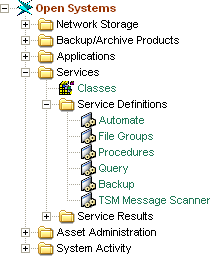
The Automate table opens. You can also access Automate services from the Open Systems file menu by selecting Create Services and then Automate.
- Click the Configuration menu and then New in the Automate table. The Automate Service Wizard opens. From the Automate table main menu, select Configuration, and New. In the Template dialog expand Backup Products, then Legato NetWorker, and select NetWorker Media Used.
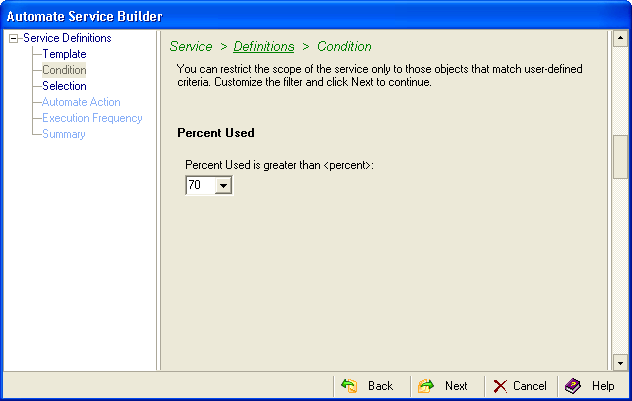
- Select 70 from the drop-down list:
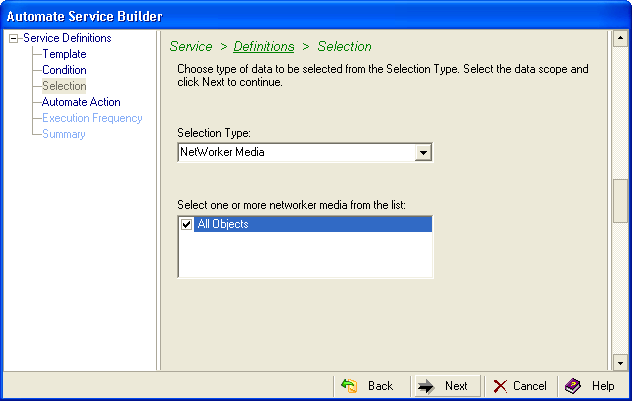
- Select NetWorker Media from the drop-down list and check All Objects:
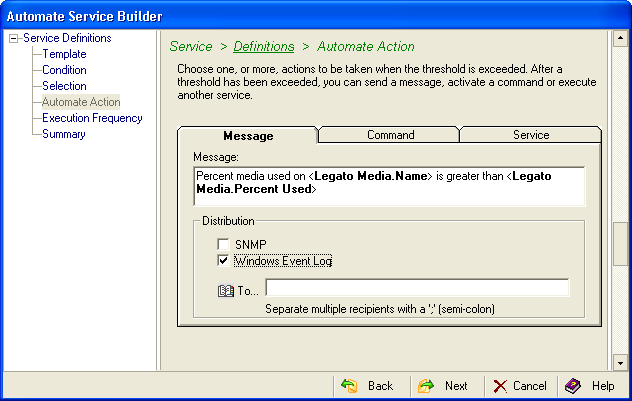
- Enter the message you want to send in the Message text box. Check the Windows Event Log check box:
- Select Immediately in the Execution Frequency dialog.
- The Summary dialog displays the parameters for the service that you have defined. If you want to make changes, click the Back button. If there are no changes, click Launch to name and then execute the service. Click Save to save the service without executing it. CA SRM runs the service according to the configuration shown in this dialog.
Note: If you make changes in the Advanced dialog, you will have to use it for all of your future changes. After you use the Advanced dialog for a service, you can no longer edit the service in the Service Builder Wizard.
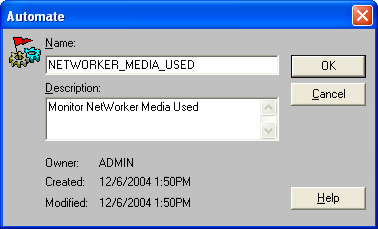
- Enter a name for the service in the dialog. You can also provide an optional description. When you finish, click OK. The service executes or saves depending on what you selected in the previous dialog:
You can use the CA SRM Activity Monitor to check the progress of any service that you create. From the Open Systems menu, select Activity Monitor.
Copyright © 2016 CA Technologies.
All rights reserved.
|
|