

This section describes how to create Automate services using the Service Builder Wizard. The Service Builder Wizard contains predefined sets of sample services. After completing the configuration steps, the automate service is ready to use. If you want to tailor a service, use the Automate Service Builder Wizard to customize it.
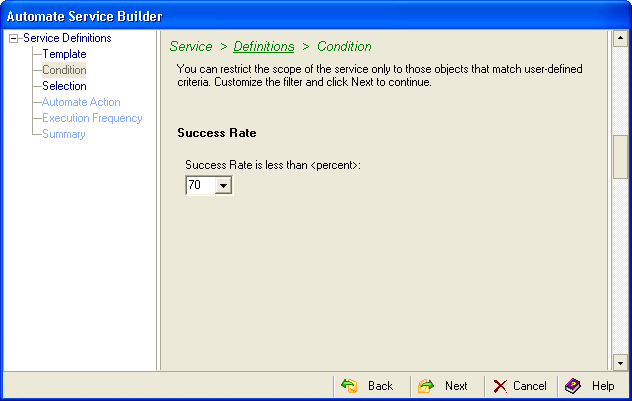
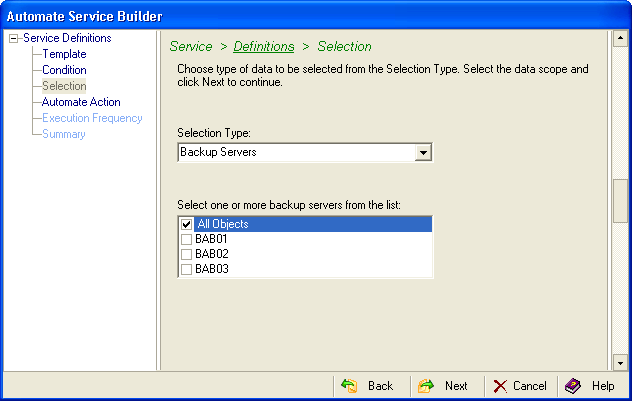
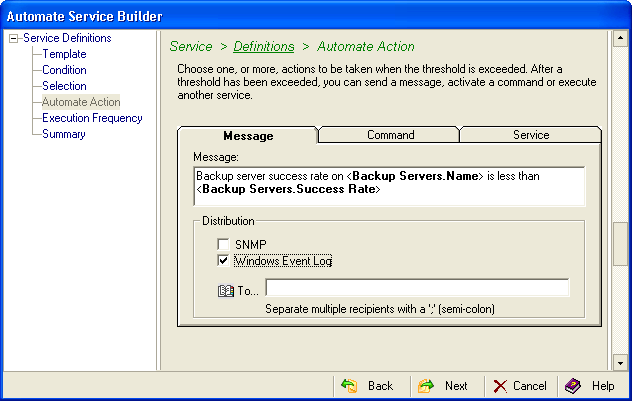
The following example shows you how to search for all backup servers that were less than 70 percent successful and send a message to the Windows event log. To do this, follow these steps:
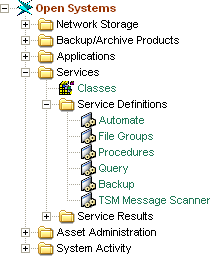
The Automate table opens. You can also access Automate services from the Open Systems file menu by selecting Create Services and then Automate.
If you select Weeks, you can choose a specific day in the On box. The On box is inactive for the other frequencies.
The Retain Historical Data (Trending) option is only available when you enable periodic execution.
If you want to collect at a specific time check this box. This only works in conjunction with the Execute once and Execute periodically options. Use the spin box to designate the time of day you want the collection to occur.
Hold—This option keeps the service available but the service does not run. It remains on hold until you change the option to one of the frequencies listed above. You can use the Hold option for situations where you want to kickoff this service from outside of CA SRM using the command line option. Hold is not available for every service.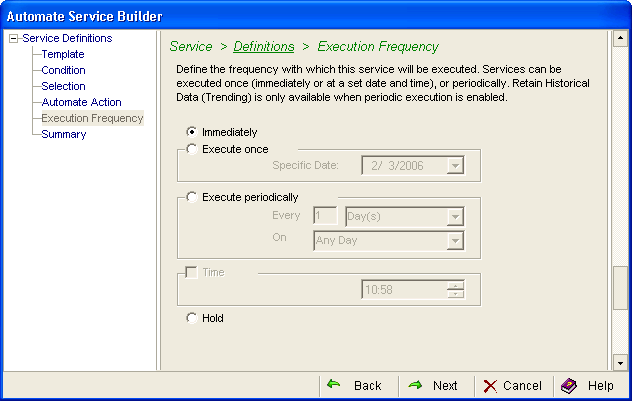
Note: If you make changes in the Advanced dialog, you will have to use it for all of your future changes. After you use the Advanced dialog for a service, you can no longer edit the service in the Service Builder Wizard.
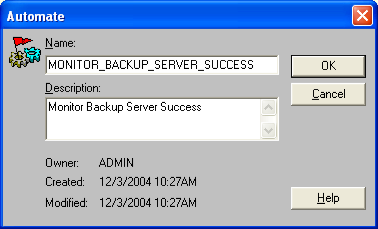
You can use the CA SRM Activity Monitor to check the progress of any service that you create. From the Open Systems menu, select Activity Monitor.
|
Copyright © 2016 CA Technologies.
All rights reserved.
|
|