

Use the chargeback query in conjunction with the Unicenter Service Accounting. This function enables you to create reports that help you relate the storage resources to their cost through the observation of consumption patterns. You need to have Unicenter Service Accounting r11.1 installed, and you also need to define a BrightStor metric to utilize the CA SRM data produced by this query. The XML file exported by CA SRM needs to match the XSL file that is shipped with Unicenter Service Delivery’s xmlAgent. A BrightStor metric named BrightStor Total File Usage is included with Unicenter Service Accounting.
See the Unicenter Service Accounting documentation on how to define a metric.
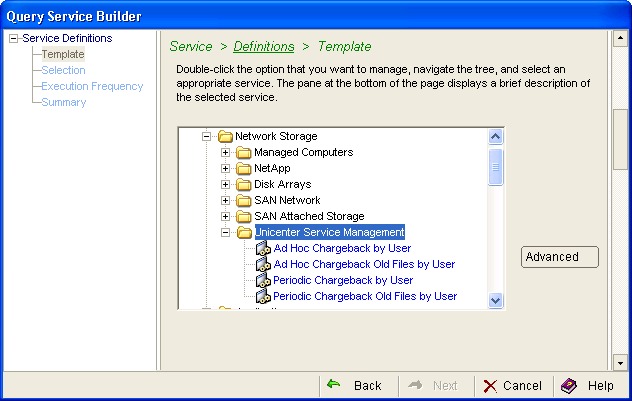
To create the query in CA SRM, follow these steps.
If you select Weeks, you can choose a specific day in the On box. The On box is inactive for the other frequencies.
The Retain Historical Data (Trending) option is only available when you enable periodic execution.
If you want to collect at a specific time check this box. This only works in conjunction with the Execute once and Execute periodically options. Use the spin box to designate the time of day you want the collection to occur.
Hold—This option keeps the service available but the service does not run. It remains on hold until you change the option to one of the frequencies listed above. You can use the Hold option for situations where you want to kickoff this service from outside of CA SRM using the command line option. Hold is not available for every service.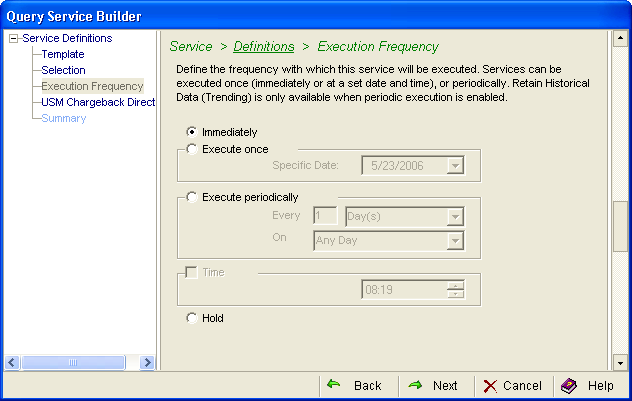
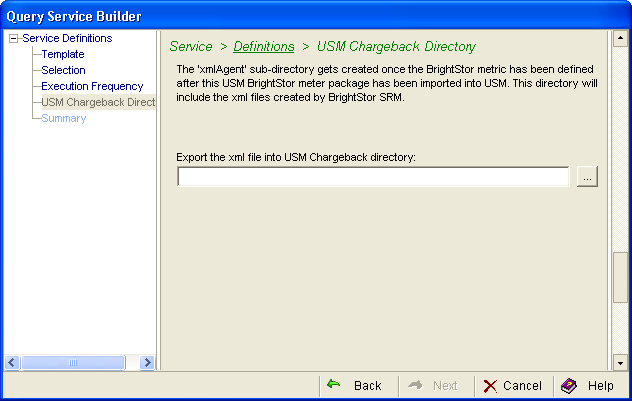
If CA SRM finds Unicenter Service Accounting on the local machine, CA SRM provides a default directory.
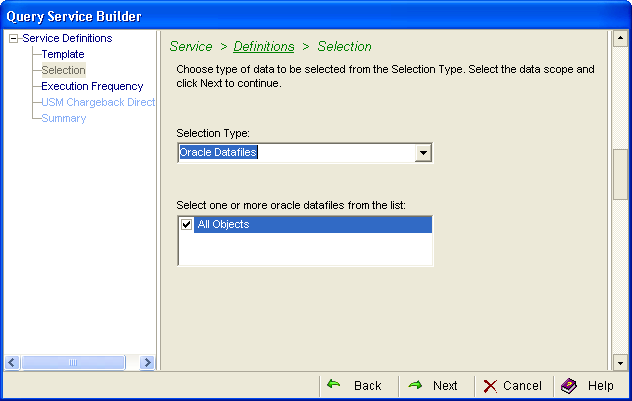
The query creates a file name that looks like this: BS_Chargebackxx.xml. The xx is the object name. So in the preceding example the file name generated by the query is BS_ChargebackOracleDatafiles.xml.
|
Copyright © 2016 CA Technologies.
All rights reserved.
|
|