CA SRM adds support for collecting and reporting data from IBM SVC Storage Virtualization appliance. The IBM Storage Volume Controller (SVC) data collection agent is responsible for collecting high level information like Clusters, Nodes, MDisk groups, MDisks, VDisks and so on from IBM SVC installed node by communicating to SMI-S provider configured on any platform which will reside on the managed server machine. To create a virtual storage environment, you must register the virtual storage server.
- Open the CA SRM Windows Client main window.
- Select Open Systems, Register, Network Storage, Virtual Storage Servers.
The CA SRM VSS Registration Wizard welcome dialog appears.
- Click Next.
The Selecting Application type dialog appears.
- You can select the VSS application type that you want to discover and click Next.
The Selecting an Application Host dialog appears.
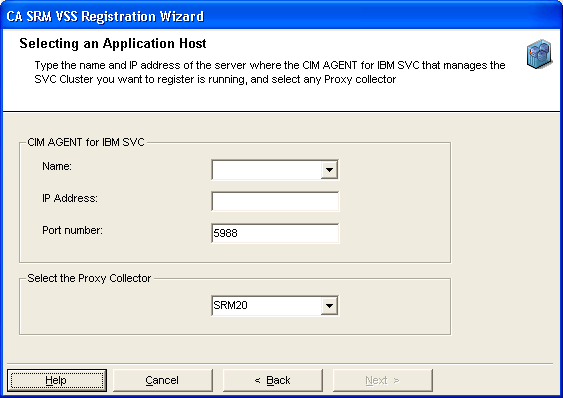
- Select the name of the SMIS provider in the CIM AGENT for IBM SVC section.
- Type the IP address of the SMIS provider.
- Type the port number of the SMIS provider.
- Select the proxy collector from the drop-down list from the Select the Proxy Collector section.
The proxy collector is the computer through which CA SRM performs data collection on the host server.
If the proxy collector you want to use is not available in the drop-down list then you have not registered the computer with CA SRM. For more information about registering a computer with CA SRM, see Registering New Objects in the chapter “Managing Network Storage Objects.”
- Click Next.
The Defining Security and Data Collection dialog appears.
- Type the namespace supported by CA SRM for IBM is root/ibm in the SVC Cluster application security section.
- Type the username of the SMIS provider.
- Type the password associated with the user name.
- Specify how often you want CA SRM to perform data collection on the storage device. Click the Ellipsis button.
The Data Collection Frequency dialog appears:
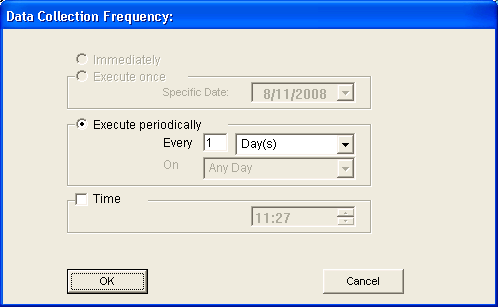
Use this dialog to set the data collection frequency. The default value for data collection is once every day. Click OK to save the settings and close the dialog.
- Click Next.
The Devices managed by the SVC Application dialog appears.
- Check the box next to the VSS application that you want to manage from the Devices managed by the SVC Application dialog.
- Click Next.
The Set Organization and Location dialog opens.
- Edit the fields in this dialog if you want to add a different location, organization, and contact:
- Location-Lets you attach a geographic location to the computer or server. Select a location from the drop-down list. You can also click New Location to add the details of the new location in the Create New Location dialog. Click OK to exit the dialog.
- Organization-Lets you attach organization to the computer or server. Select an organization from the drop-down list. You can also click New Organization to add the details of the new organization in the Create New Organization dialog. Click OK to exit the dialog.
- Contact-Lets you add a contact. Click New Contact to add a contact using the Create New Contact dialog. Enter the name, phone number, and email address of the new contact. You can access your default address book by clicking the To: button and select the email address from there.
Note: You can also add new contacts by clicking New Contact in the Create New Location dialog or Create New Organization dialog.
- Click Register to complete the registration.
The CA SRM VSS Registration Wizard displays the registration complete message.
- Click Close to exit the wizard.

