

Web Reporter Data Bridge (WRDB) is the component that uploads data from each SRM Server registered in Web Reporter Control Panel.
From the Web Reporter Control Panel, a request will be sent to all registered SRM Application servers to get the latest status of WRDB's which is as follows:
Displays current operation like AddAS, DeleteAS, EnableAS, DisableAS.
Displays database upload progress in terms of managed objects.
Displays the last database upload time to SQL Central database from the respective SRM Server.
In the Web Reporter Control Panel, by default the status of each registered SRM Server automatically refreshes every 30 minutes, but you can manually refresh the status at any time.
To refresh the WRDB Status
If you would like to change the refresh time setting, see the section CA SRM Web Reporter Control Panel Settings.
You can use the CA Storage Resource Management to profile your unstructured information off your primary storage. Using Storage Categorization, you can create custom tiers, tier groups, category, and category groups. You can use these storage definitions in the Web Reporter to generate reports on complete storage utilization. A storage categorization report depicts categorized storage utilization on a tiered storage environment.
The storage usage by each category in the category group, per each tier in the tier group displays in the storage categorization reports. Basically, a tier is customized per customer need.
The storage categorization templates are provided in the Web Reporter Infoview in the ...\Public Folders\CA SRM\Templates\StorageCategorization folder.
You can export the reports from Web Reporter to the following available formats:
As a Storage Administrator, your responsibilities can include configuring storage categorization to generate reports on complete storage utilization. The utilization is categorized based on the storage types such as tiers, categories, tier groups, and category groups.
The following diagram illustrates how a Storage Administrator can customize and generate reports on categorized storage utilization:
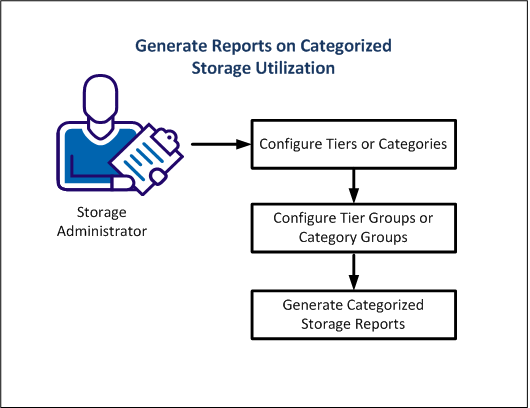
You can configure the parameters of the reports (tiers and categories) from the Web Reporter Control Panel.
Follow these steps:
The CA SRM Storage Categorization Wizard opens.
The Operation Selection Screen dialog opens.
Defines the storage on the disk array as tiers. Each tier is a collection of logical disks.
Defines the initiator of storage usage as categories. Each category is ultimately a collection of physical disks.
The Configure Tier or Category Definitions dialog opens.
The predefined elements are named as templates. You cannot modify or delete a template. The templates can be modified only to a new element (tier or category).
The Tier or Category Definition: Manual or Rule Based dialog appears.
The Manual Tier or Category Configuration dialog opens.
The Object list box displays a list of objects which are contents of a tier or a category. You can select the contents of a tier or a category from the displayed list. Go to step 7.
The Rule Based Tier or Category Configuration dialog opens. Go to step 10.
The filtered elements display in the left pane.
You can create tiers or categories based on these base tables. Go to step 11.
You can add multiple rules based on the base tables available.
Note: The name of a tier or category is always selected in CAPS by default.
For Example: If you select the following:
Field: Name
Relation: CONTAINS
Value: %IBM%
The Preview dialog displays the results that contain the value IBM.
Note: These validations are applicable only for the current rule of a tier or category.
The Preview screen displays the current rule of created tiers or categories. This dialog populates the list of objects that make the contents of the rule in the current state of the database.
The predefined elements are named as templates. You cannot modify or delete a template. The templates can be modified only to a new element (tier or category).
The following are default tier definitions available:
Defines all Logical disks with Disk Array Family = (EMC Symmetrix or IBM) and Raid_Type = 10.
Defines all Logical disks with Disk Array Family = (EMC Symmetrix or IBM) and Raid_Type = 5.
Defines all logical disks with Disk Array Family = EMC CLARiiON.
Defines all Logical disks with Disk Array Family = LSI or Hitachi.
These four tier templates form the contents of a tier group named TIER_GROUP_TEMPLATE.
Similarly, the collection of default category templates forms the category group template. The following are default category templates available:
Defines each server as a category.
Defines each location as a category. All the computers in the location form this category.
Specifies each organization as a category. All the computers in the organization form this category.
Defines each user as a category. All servers owned by the users form this category.
Defines each virtual host server as a category.
Defines each application as a category.
The following objects are available to configure a category. These objects add value in generating complete storage utilization reports with the granular level of information.
You can configure the parameters of the reports (tier groups and categorie groups) from the Web Reporter Control Panel.
Follow these steps:
The CA SRM Storage Categorization Wizard opens.
The Operation Selection Screen dialog opens.
Defines the tier group as a collection of tiers.
Each tier is a collection of logical disks. This option is an input for the reports in the InfoView.
Defines the category group as a collection of categories. Each category is ultimately a collection of physical disks. This option is an input for the reports in InfoView.
The Configure Tier Group or Category Group Definition dialog displays the tiers or categories in a list.
The Define Tier or Category: Manual Configuration or Rule-Based Configuration dialog opens. Go to step 5.
The Select Tier or Category Manually dialog opens.
The Summary dialog summarizes the operations performed using the Storage Categorization wizard.
You can create a custom tier group or category group from an existing tier or category. Go to step 9.
The Create Tier or Category – Manually dialog opens.
The Object list box displays a list of objects which are contents of a tier or a category. You can select the contents of a tier or a category from the displayed list. Go to step 6.
The Create Tier or Category – Rule Based dialog opens. Go to step 11.
The filtered elements display in the left pane.
You can create tiers or categories based on these base tables.
Note: The dialog populates all the existing tiers or categories only when you have created custom tiers or categories. If you have not created any custom tiers or categories and only have template tiers or categories, this dialog displays empty panes.
The filtered elements display in the left pane.
You can manage the tier group or category group by selecting the tiers or categories manually.
You can add multiple rules based on the base tables available.
Note: The name of a tier group or category group is always selected in CAPS by default.
For Example: If you select the following:
Field: Name
Relation: CONTAINS
Value: %IBM%
The Preview dialog displays the results that contain the value IBM.
Note: These validations are applicable only for the current rule of a tier or category.
The Preview screen displays the created tier or category groups.
You can use these created definitions in the Web Reporter Control Panel to generate reports on complete storage utilization.
A generic report template and one report for each category template and the default tier are provided. You can customize and create more such reports using the generic report template. The following is the sample input for the generic report template:
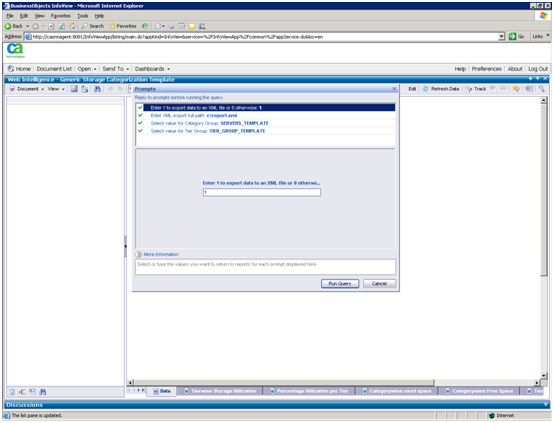
Create XML output of the report to access the storage utilization cost. Specify a valid path on the SQL Server where you want to save the XML output of the reports. As the data refreshes, the XML output is over written.
When you install the Web Reporter, the following default reports are automatically created and are available:
This report shows the storage usage by each category per tier in the default tier group.
This report shows the storage usage by each application per tier in the default tier group.
This report displays the Category Group information only and does not display any Tier Group information.
This report shows the storage usage by each location per tier in the default tier group.
This report shows the storage usage by each organization per tier in the default tier group.
This report shows the storage usage by each server per tier in the default tier group.
This report shows the storage usage by each user per tier in the default tier group.
This report shows the storage usage by each virtual host server per tier in the default tier group.
|
Copyright © 2013 CA.
All rights reserved.
|
|