

When you install a new or upgraded version of CA SRM, certain situations such as incorrect Business Objects credentials or insufficient memory could cause a failure to import the BIAR file. If you encounter this situation, you need to manually import the BIAR file.
To manually import the BIAR file
Note: <release> indicates installed version of [assign the value for boe in your book].
Import wizard welcome screen opens.
The Source Environment dialog opens.
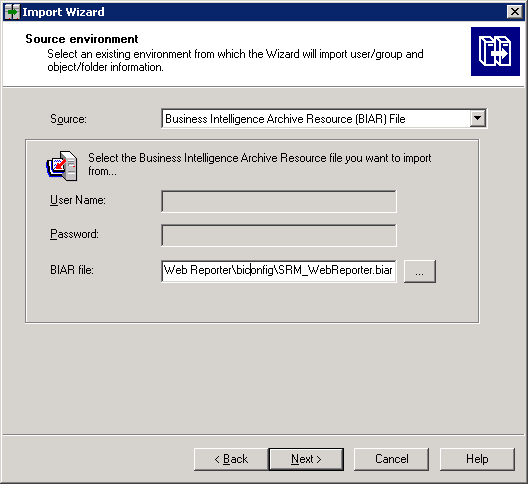
Note: In this example we are using the BIAR file as the source.
The Destination Environment dialog opens.
The Select Objects to Import dialog opens.
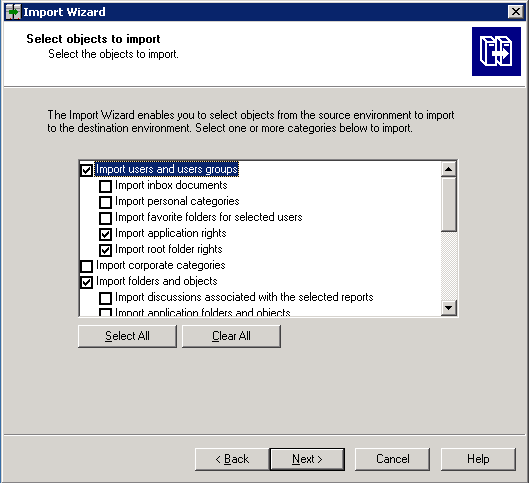
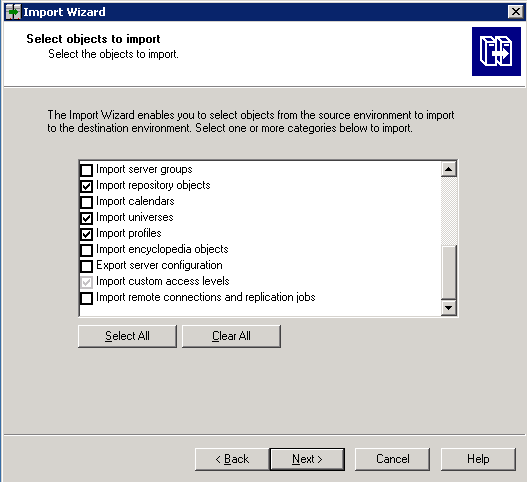
The Import Scenario dialog opens.
The Incremental Import dialog opens.
The Users and Groups dialog opens.
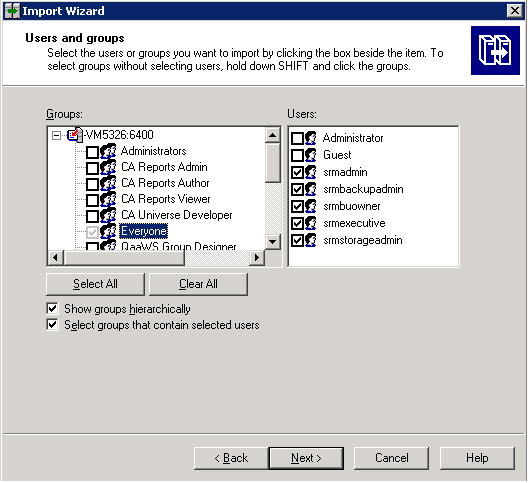
The Folders and Objects dialog opens.
The Import options for universes and connections dialog open.
Import the universes and connections that the selected Web Intelligence and Desktop Intelligence documents use directly. In the next dialog box, you can select additional universes that are not used by any imported document
Click Next.
The Universe Folder and Universes dialog opens.
The Import Options for Publications dialog opens.
Import recipients used by selected publications
Click Next.
The Ready to import dialog opens.
The import process completes.
Note: You might encounter a Universe Connection Error when you open a report after manual import. Refer the Login Error-Report to resolve this problem.
|
Copyright © 2013 CA.
All rights reserved.
|
|