Federation › Federation Security Services Guide › Authenticate SAML 1.x Users at a Consumer › How To Protect a Resource with a SAML 1.x Authentication Scheme › How To Assign a SAML 1.x Authentication Scheme to a Realm › Configure a Single Target Realm for All SAML 1.x Auth. Schemes
Configure a Single Target Realm for All SAML 1.x Auth. Schemes
To simplify configuration of realms for SAML authentication schemes, you can create a single target realm for multiple producers.
To do this, set-up:
To configure a custom authentication scheme for the single realm:
- Log into the Policy Server User Interface.
- From the menu bar, select Edit, System Configuration, Create Authentication Scheme.
The Authentication Scheme Properties dialog box opens.
- From the Authentication Scheme Type drop-down list, select Custom Template. The contents of the dialog box change for the custom template.
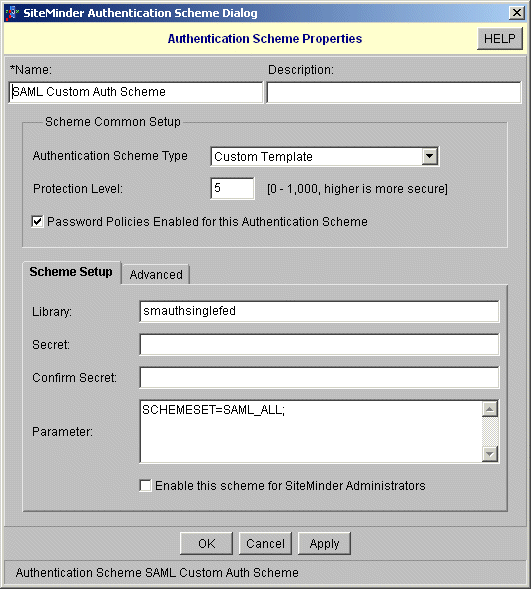
- In the Library field, enter smauthsinglefed for the library name.
- Disregard the Secret and Confirm Secret fields.
- In the Parameter field, specify one of the following:
- SCHEMESET=LIST; <saml-scheme1>;<saml_scheme2>
Specifies the list of SAML authentication scheme names to use. If you configured an artifact scheme called artifact_producer1 and POST profile scheme called samlpost_producer2, you will enter these schemes.
- SCHEMESET=SAML_ALL;
Specifies all the schemes you have configured. The custom authentication scheme will enumerate all the SAML authentication schemes and find the one with the correct Provider Source ID for the request.
- SCHEMESET=SAML_POST;
Specifies all the SAML POST Profile schemes you have configured. The custom authentication scheme will enumerate the POST Profile schemes and find the one with the correct Provider Source ID for the request.
- SCHEMESET=SAML_ART;
Specifies all the SAML artifact schemes you have configured. The custom authentication scheme will enumerate the artifact schemes and find the one with the correct Provider Source ID for the request.
- Disregard the Enable this scheme for SiteMinder Administrators checkbox.
- Click OK to save your changes.
To create the single target realm:
- Display the list of policy domains.
- Expand the policy domain where you will add the realm.
- Click on the realm icon.
- From the menu bar, select Edit, Create Realm.
The SiteMinder Realm dialog box opens.
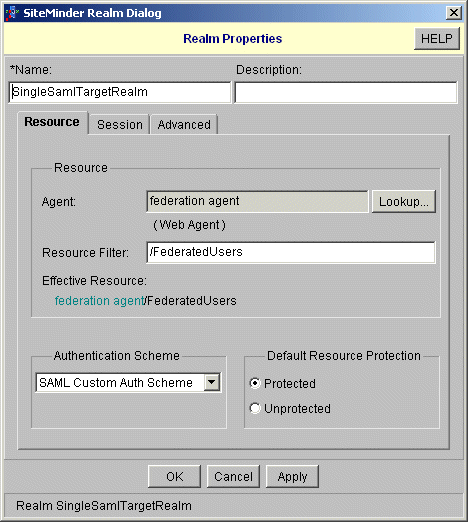
- In the Name field, enter a name for this custom target realm.
- In the Agent field, select a SiteMinder Web Agent protecting the Web server with the target consumer resource.
- In the Resource Filter field, specify the location of the target resource to which any user from any producer site should be redirected.
For example, /FederatedUsers.
- From the Authentication Scheme drop-down list, select the custom authentication scheme that you configured for directing requests to the appropriate SAML authentication schemes.
- Ensure Protected is selected in the Default Resource Protected group box.
- Click OK to save the realm configuration.
The following graphic shows the Realm Properties dialog for the custom realm.