

Users visiting multiple web sites that the CA SiteMinder® Agent for SharePoint protects have a Fedauth cookie from each site in their browsers. The SLO feature removes these Fedauth cookies when the users log out.
Configuring the single log-out feature of CA SiteMinder® Agent for SharePoint for SharePoint 2010 to support SharePoint 2013 involves several separate procedures.
This scenario assumes that the following prerequisites are met:
The following graphic describes how to configure SLO for SharePoint 2013:
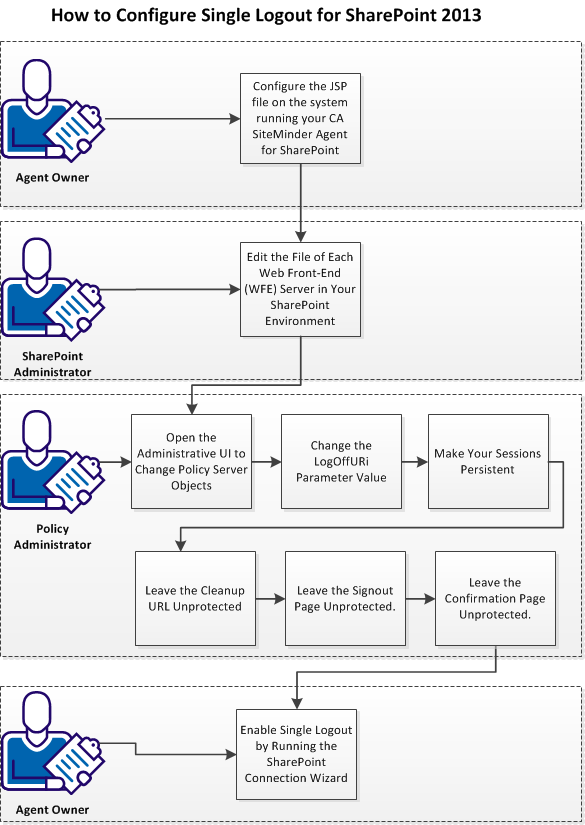
Follow these steps:
As an agent owner who is responsible for running the server hosting the CA SiteMinder® Agent for SharePoint, configure the following file:
spsignout.jsp
Follow these steps:
Agent-for-SharePoint_Home\Tomcat\webapps\affwebservices
Indicates the directory where the CA SiteMinder® Agent for SharePoint is installed.
Default: (Windows) [32-bit] C:\Program Files\CA\Agent-for-SharePoint
Default: (Windows) [64-bit] C:\CA\Agent-for-SharePoint
Default: (UNIX/Linux) /opt/CA/Agent-for-SharePoint
spsignout.jsp
<%response.sendRedirect("http://SharePointServerHostName>Port>/affwebservices/public/wsfedsignout?wa=wsignout1.0");%>
<%response.sendRedirect("http://example.com/affwebservices/public/wsfedsignout?wa=wsignout1.0");%>
The JSP file is configured.
As a SharePoint administrator who is responsible for running the SharePoint environment, edit the Welcome.ascx file on your WFE servers to accommodate SharePoint 2013. Editing the file replaces the SharePoint signout URL with the URL of the CA SiteMinder® signout page.
Follow these steps:
%ProgramFiles%\Common Files\Microsoft Shared\Web Server Extensions\15\TEMPLATE\CONTROLTEMPLATES\Welcome.ascx
Important! Do not use Notepad, Wordpad (or any other text editor with line-length limitations) to edit the .config (XML) files. A text editor that is designed for writing programming source code typically does not have such line-length limitations. For more information, see the documentation or online help for your respective editor.
<SharePoint:MenuItemTemplate runat="server" id="ID_Logout"
<SharePoint:MenuItemTemplate runat="server" id="ID_Logout2"
UseShortID="true"
ClientonClickNavigateurl="http://example.com/affwebservices/spsignout.jsp"
ClientonClickNavigateurl="http://support.example.com/affwebservices/spsignout.jsp"
Note: If the realm or component protecting the directory of the spsignout.jsp page is set to /*, create a realm or component to leave /affwebservices/spsignout.jsp unprotected.
<SharePoint:MenuItemTemplate runat="server" id="ID_Logout2"
Text="<%$Resources:wss,personalactions_logout%>"
Description="<%$Resource3s:wss,personalactions_logutdescription%>"
MenuGroupID="100"
UseShortID="true"
ClientOnClickNavigateUrl="http://example.com/affwebservices/spsignout.jsp
The files of each WFE servers are edited. Have your policy administrator perform the next steps by opening the Administrative UI.
Change the objects on your Policy Server by opening the Administrative UI.
Follow these steps:
https://host_name:8443/iam/siteminder/adminui
Specifies the fully qualified Administrative UI host system name.
Note: If your superuser account password contains dollar‑sign ($) characters, replace each instance of the dollar-sign character with $DOLLAR$. For example, if the CA SiteMinder® superuser account password is $password, enter $DOLLAR$password in the Password field.
The SLO feature requires the following value in the LogOffURi agent configuration parameter:
/_layouts/15/SignOut.aspx
Follow these steps:
Note: This agent configuration object must be based on the SharePoint 2010 default settings template.
Enables full log‑out and displays a confirmation page after users are successfully logged off. Configure this page so that it cannot be stored in a browser cache. If a cached page is used, session hijacking by unauthorized users is possible.
When the SharePoint users click the Sign out link, the following URI is used:
When the SharePoint users click the Sign in as another user link, the following URI is used:
If you have multiple SharePoint web sites below a top-level SharePoint website, add the URIs of the lower-level sites to the LogOffURI parameter.
Note: When the CookiePath parameter is set, the value of the LogOffUri parameter must point to the same cookie path. For example, if the value of your CookiePath parameter is set to example.com, then your LogOffUri must point to example.com/logoff.html
Default: /_layouts/SignOut.aspx, /_layouts/accessdenied.aspx?loginasanotheruser=true
Limits: Multiple URI values permitted. Do not use a fully qualified URL. Use a relative URI.
Example: (for a parent site of www.example.com with two lower-level sites named finance and hr respectively) /finance/_layouts/SignOut.aspx, finance/_layouts/accessdenied.aspx?loginasanotheruser=true /hr/_layouts/SignOut.aspx, /hr/_layouts/accessdenied.aspx?loginasanotheruser=true
/_layouts/15/SignOut.aspx
The value of the LogOffURi parameter has changed.
As a policy administrator who manages the polices on the Policy Server, the next step in configuring single logout is making your sessions persistent.
Follow these steps:
The sessions are persistent. Have your policy administrator continue with the next step of leaving the cleanup URL unprotected.
|
Copyright © 2013 CA.
All rights reserved.
|
|