

|
|
|
Users who visit multiple websites that the Agent for SharePoint protects have a Fedauth browser cookie for each website. Configuring the single logout verifies that these Fedauth cookies are removed from the browser of the user upon logout.
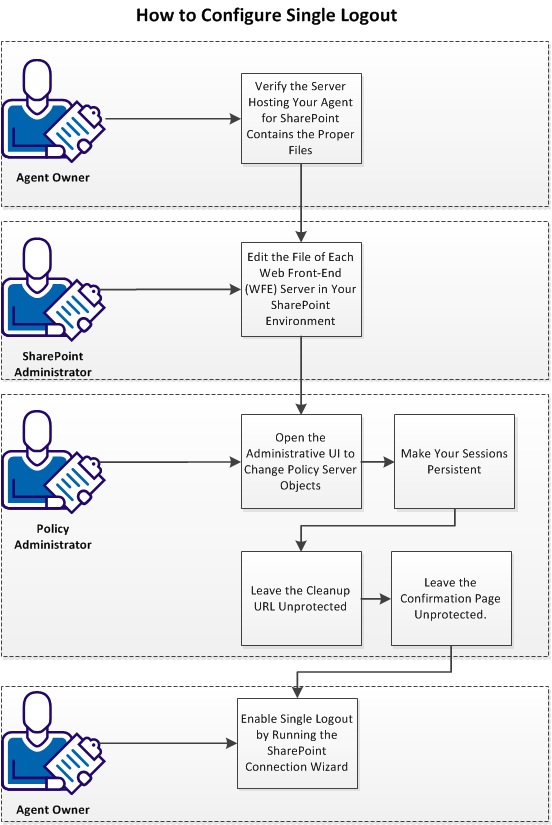
Follow these steps:
As an agent owner who is responsible for running the server hosting the Agent for SharePoint, verify that the server contains the correct .jsp file. This step is the first step in configuring the single log-out feature.
Follow these steps:
Agent-for-SharePoint_Home\Tomcat\webapps\affwebservices
Indicates the directory where the Agent for SharePoint is installed.
Default: (Windows) C:\Program Files\CA\Agent-for-SharePoint
Default: (UNIX/Linux) /opt/CA/Agent-for-SharePoint
Note: If the previous file does not exist, verify that the proper version of the Agent for SharePoint is installed on your server.
The presence of the proper file is verified. Have your SharePoint administrator continue with the next step of editing the files on your web front-end (WFE) servers.
As a SharePoint administrator who is responsible for running the SharePoint environment, edit the Welcome.ascx file on your WFE servers. Editing the file replaces the SharePoint signout URL with the URL of the <stmdnr> signout page. This step is the next step in configuring the single logout feature.
Follow these steps:
%ProgramFiles%\Common Files\Microsoft Shared\Web Server Extensions\14\TEMPLATE\CONTROLTEMPLATES\Welcome.ascx
Important! Do not use Notepad, Wordpad (or any other text editor with line-length limitations) to edit the .config (XML) files. A text editor that is designed for writing programming source code typically does not have such line-length limitations. For more information, see the documentation or online help for your respective editor.
<SharePoint:MenuItemTemplate runat="server" id="ID_Logout"
<SharePoint:MenuItemTemplate runat="server" id="ID_Logout2"
UseShortID="true"
ClientonClickNavigateurl="http://example.com/affwebservices/public/wsfedsignout?wa=wsignout1.0"
ClientonClickNavigateurl="http://support.example.com/affwebservices/public/wsfedsignout?wa=wsignout1.0"
The files of each WFE servers are edited. Have your policy administrator perform the next steps by opening the Administrative UI.
| Copyright © 2012 CA. All rights reserved. |
|