Agent for SharePoint Guide › Configuring the SiteMinder Policy Server › Protecting SharePoint Resources with SiteMinder r12.0 SP2 Roadmap › Create an Application to protect your SharePoint Resources (r12.0 SP2) › Create a Policy for your SiteMinder Application (r12.0 SP2)
Create a Policy for your SiteMinder Application (r12.0 SP2)
Your SiteMinder application requires a policy which grants the access rights with the associated SharePoint resources and the user role.
To create a policy for your application
- Open the Application you created to protect your SharePoint resources by doing the following:
- Click Policies, Applications, Application, Modify Application.
The Modify Application pane appears.
- Click the button next to your SharePoint application, and then click Select.
The Modify Application: Name pane appears.
- Click the Policies tab.
The Policies screen appears.
- Verify the following:
- The Select a context root drop-down list shows the root level (/).
- The Show Resources by Name option button is selected.
- Locate the table that shows your SharePoint resources and roles, and then select the check box to grant access to the resources, as shown in the following illustration:
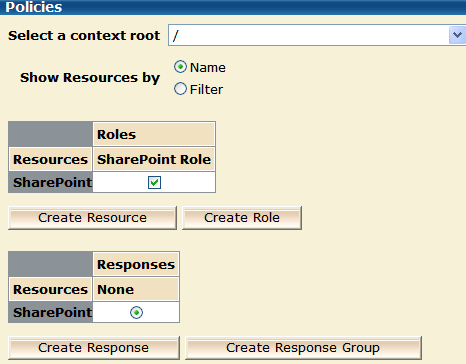
Note: The drop-down list mentioned previously only appears when you have multiple resource items defined in the Administrative UI
- Click Submit.
The Modify Application task is submitted for processing, and then a confirmation pane appears.
- Click OK.
The policy for your SiteMinder application is created.
|
Copyright © 2010 CA.
All rights reserved.
|
|

