Configuring the SiteMinder Policy Server › Protecting SharePoint Resources with SiteMinder r12.0 SP2 Roadmap › Create an Application to protect your SharePoint Resources (r12.0 SP2) › Add the Impersonation Response to your Existing SiteMinder Application (r12.0 SP2)
Add the Impersonation Response to your Existing SiteMinder Application (r12.0 SP2)
To impersonate users, your SiteMinder applications require a response for impersonation.
To add the impersonation settings to your existing SiteMinder application
- Open the Application you created to protect your SharePoint resources by doing the following:
- Click Policies, Applications, Application, Modify Application.
The Modify Application pane appears.
- Click the button next to your SharePoint application, and then click Select.
The Modify Application: Name pane appears.
- Click the Responses tab.
The Responses screen appears.
- Click Create Response.
The Create Application Response screen appears.
- Click the Name field, and enter a distinctive name.
- Click Create Response Attribute.
The Attribute Type screen appears.
- Define the attribute type by doing the following tasks:
- Click the Attribute drop-down list and select the following:
WebAgent-HTTP-Header-Variable
- Click the User Attribute option button.
- Click the Variable Name field and enter the name for the the response variable. Record the name for future reference when you configure the Web Agent.
Important! Use the same name for the response variable in both the SiteMinder response and for the value of the SPImpersonateResponseVarName parameter in the Agent Configuration Object.
- Click the Attribute Name field and enter the following Active Directory attribute:
userprincipalname
- Click OK.
The Attribute Type screen closes and the Create Application Response screen appears.
- Click OK.
The Responses tab appears.
- Click the Policies tab.
The Policies screen appears.
- Locate the name of the response you created in Step 4, and then click its option button, as shown in the following illustration:
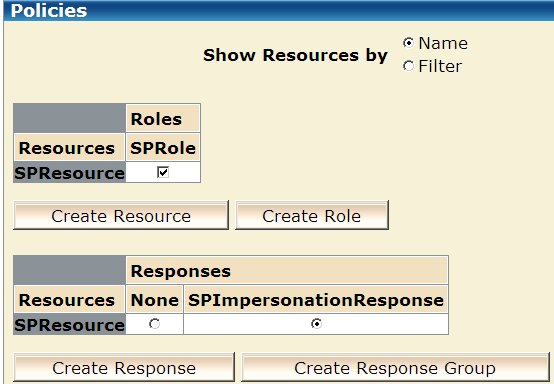
- Click Submit.
The Modify Application task is submitted for processing, and then a confirmation pane appears.
- Click OK.
The impersonation response is added to your SiteMinder application.
|
Copyright © 2010 CA.
All rights reserved.
|
|

