SiteMinder Agent for SAP Web AS Guide › Configure SAP Web Application Server 7.1-7.3 and the Agent for SAP Web AS to Work Together › Configure a SiteMinder Authentication Scheme for the Enterprise Portal
Configure a SiteMinder Authentication Scheme for the Enterprise Portal
Create a SiteMinder authentication scheme to integrate the SiteMinder Login module with the Enterprise Portal.
Follow these steps:
- Create a backup of the existing authschemes.xml file, as follows:
- Start the Web AS Java Config Tool by executing SAPJ2EEEngine_installation\j2ee\configtool\configtool.bat.
- Click the symbol for Switch to configuration editor mode.
- In the tree, navigate to cluster_config, system, custom_global, cfg, services, com.sap.security.core.ume.service, Persistent, authschemes.xml.
- Click the symbol for Switch between view and edit mode to switch to edit mode.
- In the tree, select authschemes.xml and click the symbol for Show the details of the selected node.
- In the Change File dialog, click Download and save the file to a local directory. Leave the Change File dialog open.
- Make a duplicate copy of the authschemes.xml file with a different name.
- Edit the local authschemes.xml file in a text editor:
- Create a new authscheme by copying the elements of the existing uidpwdlogon authscheme. Rename the new authscheme to SiteMinder.
See the following example:
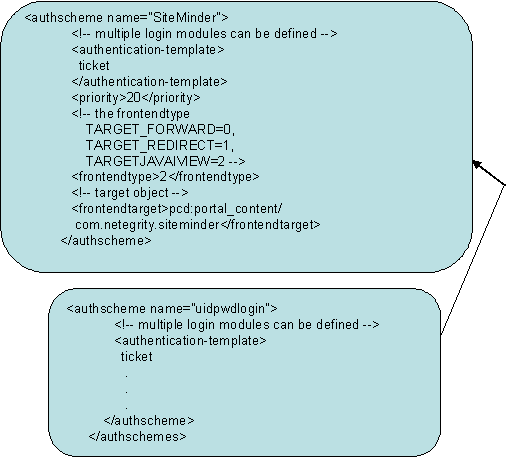
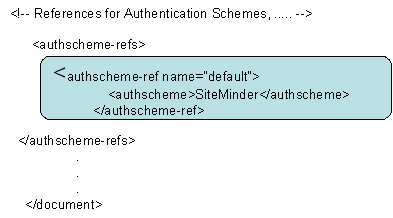
- Modify frontendtarget of the SiteMinder authscheme to point to a URL iView, which must refer to an error page. This page is presented to the user if authentication is unsuccessful or if the authentication stack fails. For details on creating a URL iView, see the SAP documentation.
Note: The value of frontendtarget that is shown here is merely for reference; change it appropriately for the user environment. Also if the frontendtarget value given here is an iView, give Read access to the Everyone group.
- Modify the default authscheme-ref so that it points to the SiteMinder authscheme.
- Save your changes to the authschemes.xml file and close the text editor.
- In the Web AS Java Config Tool Change File dialog that you left open in step 1f, click Upload and select the local authschemes.xml file you edited previously.
- Open the SAP NetWeaver Administrator
- Navigate to Configuration, Security, Authentication and Single Sign-On.
- Click on the "ticket" template.
- (Optional) Remove other Login Modules (BasicPasswordLoginModule, EvaluateTicketLoginModule) from the ticket authentication template stack.
- Add the following modules to the ticket authentication template stack, in the order that is shown and after the EvaluateTicketLoginModule, if present:
- SiteMinderLoginModule
- CreateTicketLoginModule
- Click on the SiteMinderLoginModule entry and add a redirectOnError option as follows:
- Click Add in the options section.
- Enter redirectOnError in the Name column and set the values to true.
- Click on the CreateTicketLoginModule entry and add a ume.configuration.active option as follows:
- Click Add in the options section.
- Enter ume.configuration.active in the Name column and set the value to true.
- Do one of the following steps:
- Restart the Web AS J2EE engine for the changes to take effect.
|
Copyright © 2012 CA.
All rights reserved.
|
|

