

Configuring and Using Diagnostic Tools › Trace a CI Using USM Web View for Diagnosing Synchronization Errors
Trace a CI Using USM Web View for Diagnosing Synchronization Errors
As an administrator, you can USM Web View to view the current state of a CI as CA Catalyst views it. You can use the USM Web View interface to get the CA Catalyst notebook ID and use it for tracing purposes. For example, to troubleshoot synchronization issues, you can use the notebook ID in the CA Catalyst Trace UI and can track the flow of tracing for the specific notebook. You can use that information to determine which component (Reconciler, Sync Planner, and Sync Executor) is creating the error and then review the error details.
Follow these steps:
- Open the CA SOI Dashboard and click the USM Web View link.
The USM Web View interface opens.
- Search for a known CI by entering a valid keyword (for example, label and sysname) value in the Search field.
- View the USM Properties section that displays a reconciled view of the CI (for example, CA:00030, tenant0) by default. CA:00030, tenant0 is the MDR code for the reconciled state of the CI.
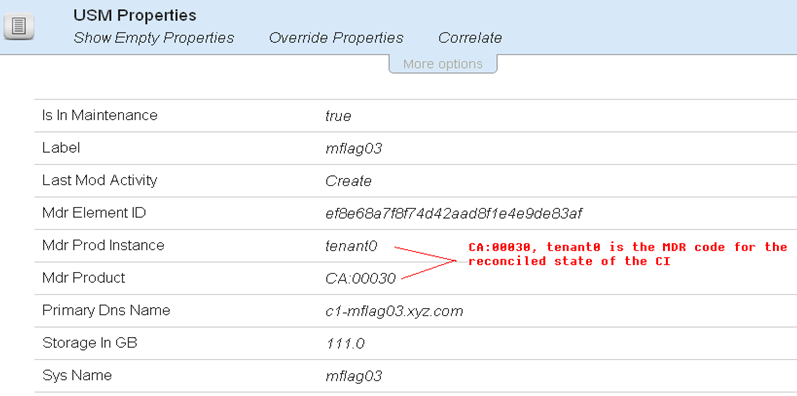
- Click the More options link to display additional options.
- Use the By Data Source drop-down list to get different projections of the CI.
- Expand the drop-down list to see which domain managers are associated with the CI.
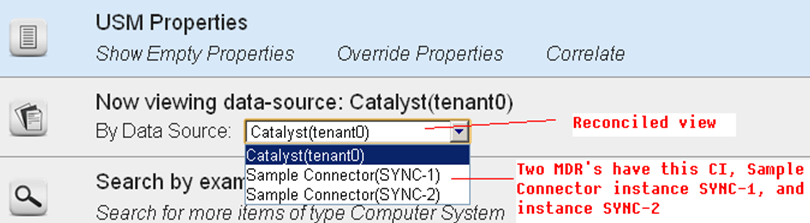
- Review the URL to get the internal CA Catalyst notebook ID for tracing purposes. The notebook ID is embedded in the URL. In this example, the notebook ID is 01A356C6861948B08E0FC6E0E1EBCA31. You can use this notebook ID in the CA Catalyst Trace UI for further analysis.

Copyright © 2013 CA.
All rights reserved.
|
|