

As an administrator, you can create dynamic service policies that automatically include resources in a new dynamic service based on the criteria that you define. You can use regular expressions and test your expressions with the Regex Tester. The Service Discovery Policy Editor lets you create and manage Service Discovery policies based on the following:
Defines the relationship to establish between CIs that meet the policy criteria and the service CI.
Defines the USM type on which to apply the policy.
For example, you can create a Service Discovery policy to match all ComputerSystem CIs within a certain IP address range and add those CIs to a service. When you open the Service Discovery Policy Editor, you can create a policy for one relationship and type. To define multiple policies for one dynamic service, you must go through the wizard multiple times.
The Service Discovery engine evaluates the Persistent Store for CIs that match the Service CI relationship and attribute criteria. Every CI that matches is then added to the service. The evaluation is continuous, so the service is updated dynamically when matching changes in the Persistent Store occur.
You can create one policy at a time for a relationship. Multiple policies for each relationship are supported, but you must create them in separate operations. Multiple dynamic service policies can contribute to the same service as long as they share the name of the service.
Note: Service Discovery policies support only USM-Core CIs.
Use this scenario to guide you through the process:
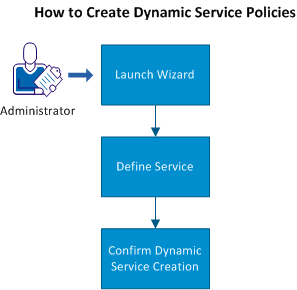
You can also read the scenario that provides an example for creating dynamic service policies.
|
Copyright © 2013 CA.
All rights reserved.
|
|