

The Configuration Administrator determines that your CA SDM environment requires a verification policy for the Memory Installed (phys_mem) attribute. The Configuration Administrator creates a Managed Attribute definition with the Manual Verification will be required status because CA SDM does not have an MDR to discover the value. The Configuration Administrator reviews the managed states and creates a verification policy. The Change Manager views a Change Order that requests an update to the Memory Installed value of a CI, and this change request requires manual verification.
The following diagram explains how a Configuration Administrator establishes a verification policy and how the Change Manager verifies a CI attribute value update manually:
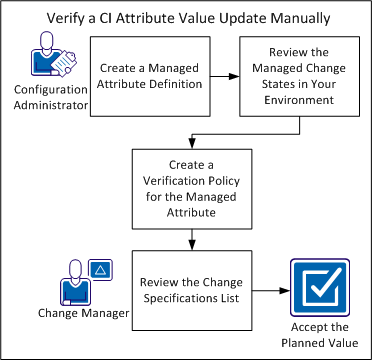
The Configuration Administrator creates a Managed Attribute definition for the Memory Installed (phys_mem) attribute.
Follow these steps:
Default: Disabled
The Managed Attribute is saved.
The Configuration Administrator reviews the Managed Change States in the CA SDM environment. Change verification initiates when the status of a Change Order changes to a Change State that CACF manages, such as Verification in Progress.
Note: The Configuration Administrator can customize which state in the Change Order lifecycle initiates change verification. The administrator can also customize which states allow you to modify change specifications when implementation starts.
Follow these steps:
For example, you decide to make the Implementation in Progress status allow editing change specifications, and also enable Change Verification Active. This example indicates an active change verification process, and that you can edit values when the Change Order sets to the Implementation in Progress status.
The Verification Policy specifies the CACF action when an MDR discovers an attribute value, and attempts to update the CMDB with that data.
Follow these steps:
Note: You can enter a higher or lower number, based on other verification policy priorities in your environment.
Note: If you only want to allow updates to this attribute from a user logged in through the web interface, enter Web Client as the MDR Name Pattern.
A Change Order with an RFC status wants to change the value of the Memory Installed (phys_mem) attribute in a CI named server1. The Change Manager sets the verification status of the Change Specification to Manual Verification will be required. The Change Manager can view the Change Specification in CA SDM.
Follow these steps:
All the change specifications with Manual Verification become Manual Verification Active.
The tab highlights all change specifications in red to indicate that manual verification is required.
Note: You can also view change specifications from the Administration tab when you click CA CMDB, Configuration Audit, Change Specifications. Additionally, view change specifications from a CI after you select the Change Specifications tab from the Related Tickets tab.
For example, change specifications of Change Order 21 contain this status.
Note: Change specifications that failed verification also display in red to help show change specifications that require further attention.
The Change Manager researches the correct attribute value for the CI and makes the appropriate decision on the change request.
Follow these steps:
The Verify Status changes to Accepted Planned Value.
Note: After you click Accept Planned Value, the CI updates with the Planned Value automatically.
You have now successfully verified a managed attribute value manually.
|
Copyright © 2013 CA.
All rights reserved.
|
|