

As a system administrator, you perform the rolling server maintenance on the CA SDM servers. This maintenance can be performed to apply patches or to perform a general maintenance on the servers. We recommend you to perform the maintenance on all the servers in a specific order. This process ensures all the servers are updated with the similar changes causing minimal or no disruption to end users. For any server-specific changes, you do not need to update all the other servers.
Important! Before, you apply a common MDB patch, or an OS or security patch, you are required to shut down all the CA SDM servers. In such a case, the user task is disrupted and has no access to CA SDM until all servers are up and running. We recommend the system administrator to plan the patch application accordingly.
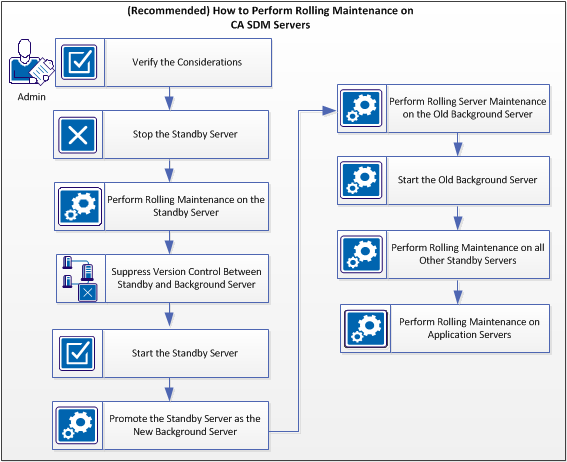
The following diagram shows the recommended process to perform a rolling maintenance on the CA SDM servers:
Note: Depending upon your organization standards, the rolling maintenance process in your organization may differ from the recommended process.
Follow these steps:
When you start the background server, it becomes a standby server.
Note: Stop the standby server, perform a rolling maintenance, and start the server.
During a failover of the background server to the standby server, consider the following:
Important! If you have configured your third party tool to enable the auto-failover of the CA SDM servers, you must disable it before starting the rolling maintenance.
CA SDM version control helps you to manage the system customizations across all CA SDM servers. Ensure that you suppress the version control on the standby server before starting it. This process ensures, that the standby server is not upgraded to the system customizations of the background server. To suppress the version control, run the following command on the standby server that you just upgraded:
pdm_server_control -v
Before you stop the background server, promote the standby server (that you have upgraded) as the new background server. If Support Automation is installed with CA SDM, notify the active Support Automation users about the background server shutdown.
Follow these steps:
sa_server_notifier [-h] | [-q seconds] | [-c]
Displays the help page.
This option notifies a local server (background) to quiesce in a specified time interval. This interval is the number of seconds before the server goes offline. This option cannot be used for a standby server or application server.
This option cancels a previously sent quiesce request.
A pop-up message is displayed to all the active users using Support Automation. This message notifies the users about the server shutdown and the time that is left for the shutdown. The users must save their work and logout within that scheduled time.
pdm_server_control -b
Notifies a local standby server to become the background server. The standby server must already be running. If the server is not running, it is started but no failover is performed; to start a failover, run the command again.
The background server shuts down automatically and the standby server is promoted as the new background server. This change does not affect the end-user sessions. The in-progress updates (if any) are stored and delayed, until the new background server comes online.
As a best practice, you can first perform the rolling maintenance on an application server that has the minimal or no users connected to it. Then inform all users active on other application servers to log in to the updated server. Finally you can perform the maintenance on the other application servers. This process ensures that the users are not moved between application servers multiple times.
Follow these steps:
The application server is updated with all the changes.
The application server is updated with all the changes.
All the application servers are updated with all the changes.
You choose an application server with the least user activity. Run the following command on each application server to choose the one with no or minimal active sessions.
pdm_webstat
Note: This command does not capture the SOAP or REST Web Service sessions.
You inform all the active users on an application server to move to the less active application server before you stop it. Ensure that you have restarted the less active application server before moving all the users to it.
Follow these steps:
pdm_server_control [-h] -q interval -s server_name
Displays the help page.
Notifies a local or remote application server to quiesce in a specified time interval. This interval is the number of seconds before the server goes offline. When using this option without a server_name, the local server is notified to quiesce. This option cannot be used for a background or a standby server.
A pop-up message is displayed to all the active users on the application server to notify them about the server shutdown and the time left for the shutdown. The users must save their work and logout within that time. The application server stops after the specified time. The users log on to the other application server to resume their work. The Support Automation analyst can refer to the ticket and resume their work.
The application server is stopped successfully.
|
Copyright © 2013 CA.
All rights reserved.
|
|