

|
|
|
After you have created a theme, you can customize it, to give it a unique look-and-feel. Customizing a theme helps to reinforce branding and other messaging for the business unit or the department or organization it represents. Before you edit the main.css file, verify that you meet the prerequisites for editing CSS files.
Follow these steps:
Important! As a best practice, always back up CSS files and other configuration files before you edit them.
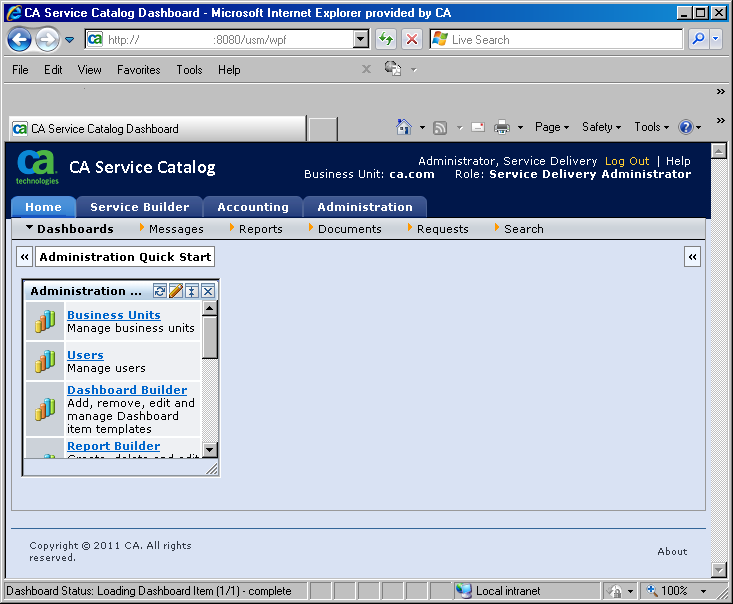
For example, To change the background color globally on product pages, do the following:
td.pagebg{background-image:url(../images/grid/page-bg.png);background-repeat:repeat-x;background-color:#D9E2F3;}
background-image:url(../images/grid/page-bg.png);
The line now appears as follows:
td.pagebg{background-repeat:repeat-x;background-color:#D9E2F3;}
Note: The setting in this example does affect the background color of the entire product page. However, the background colors of specific sections of the page override the background color of the entire page.
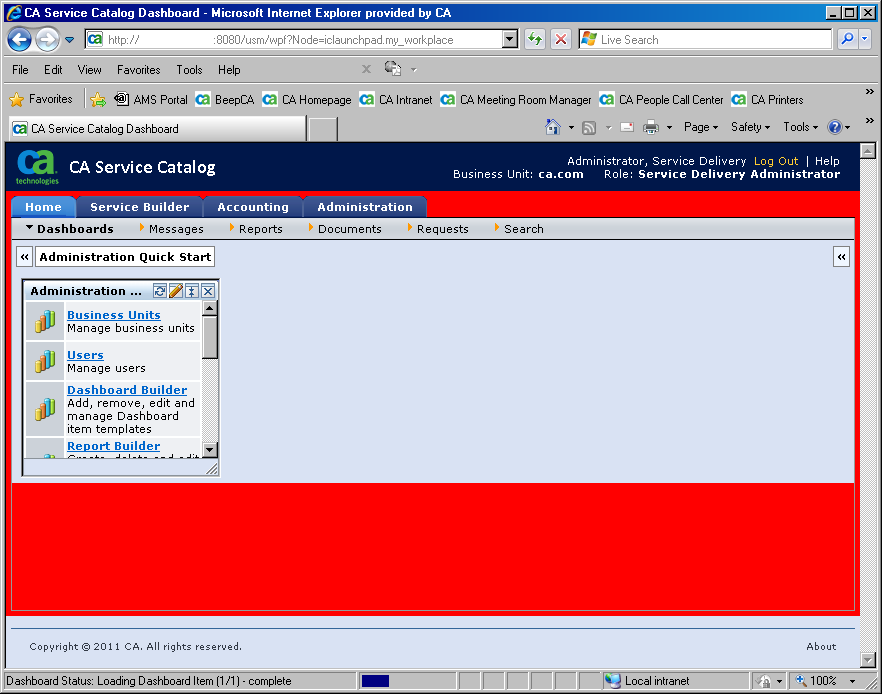
A sample page follows. This page displays the updates to the background color specified in the previous step.
For example, you can customize the look-and-feel of the top-level menu tabs (Home, Service Builder, Accounting, and Administration). To do so, find and edit the following section in the main.css file:
a.tabs {
font-family:verdana, arial,sans-serif;
font-size:10px;
font-weight:700;
color:yellow;
text-align:center;
white-space:nowrap;
text-decoration:none;}
You have customized the theme. In addition, you can also customize certain global page elements that are not directly related to themes.
| Copyright © 2011 CA. All rights reserved. | Tell Technical Publications how we can improve this information |