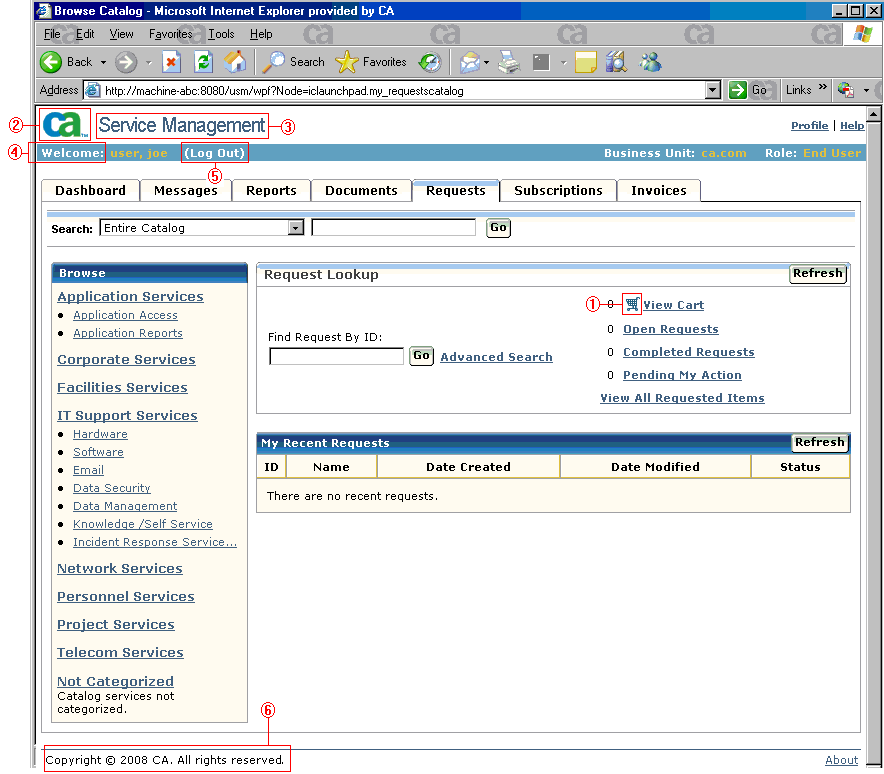
The following window identifies the various elements of the product user interface that can be customized.
Note: Your company’s browser window may look different than the following one.
Each element identified in the table below can be customized by replacing or editing the corresponding file.
Note: For the Text elements, the file is shown in the folder location for an English system (icusen). For other languages, the file location will be different.
|
# |
Element Type |
Comment |
File |
|
1 |
Graphic |
View shopping cart |
%USM_HOME%\view\webapps\usm\images\ |
|
2 |
Graphic |
Company logo |
%USM_HOME%\view\webapps\usm\ |
|
3 |
Text |
Product name |
%USM_HOME%\view\webapps\usm\locale\icusen\ includes_shared.xml (<product_title> tag) |
|
4 |
Text |
Welcome |
%USM_HOME%\view\webapps\usm\locale\icusen\ includes_shared.xml (<welcome> tag) |
|
5 |
Text |
Log Out |
%USM_HOME%\view\webapps\usm\locale\icusen\ includes_shared.xml (<logoutnode> tag) |
|
6 |
Text |
Footer |
%USM_HOME%\view\webapps\usm\locale\icusen\ includes_shared.xml (<footer> tag) |
CA Service Catalog includes several hundred XSL, XML, JavaScript, and image files. Together, they are used to form every page and every page element in the product. Each file represents one page or a part of a page, such as a dialog, menu option, form field control, message, or picture.
Every file is named intuitively to illustrate its function. You can optionally customize any of these files to meet your requirements.
To customize XSL, XML, JavaScript, and image files, follow this process:
<script src="FileStore/custom/explorer/scripts/custom_form_example.js"></script>
This action is required because the XSL file references the filestore location for the customized script files.
In the following table, the parent folder is %USM_HOME%/view/webapps/usm. The filestore folder is %USM_HOME/filestore. The folder entries, such as /explorer and /custom/explorer, are sub-folders under the parent and filestore folders.
|
File |
Original Location in |
Custom Location in |
|---|---|---|
|
XSL |
/explorer |
/custom/explorer |
|
XSL |
/explorer/request |
/custom/explorer/request |
|
XML |
/locale/icusen* |
/custom/locale/icusen* |
|
XML |
/locale/icusen*/request |
/custom/locale/icusen*/request |
|
image |
/images |
/custom/images |
|
image |
/images/billing |
/custom/images/billing |
|
JS |
/explorer/scripts |
/custom/explorer/scripts |
*The folder name icusen applies to English-language implementations only. If you are using a non-English implementation, your locale-specific folder name is different. In such cases, use your locale-specific folder name instead of icusen.
| Copyright © 2010 CA. All rights reserved. | Email CA Technologies about this topic |