

Advanced authentication flows, authentication methods, and applications are components of Advanced Authentication in the User Console. When a tenant administrator sends a request to disable any one or a combination of these components, the effect of the procedure that you perform as the hosting administrator depends on the components that you disable.
The following diagram shows the various options for disabling all or individual Advanced Authentication components:
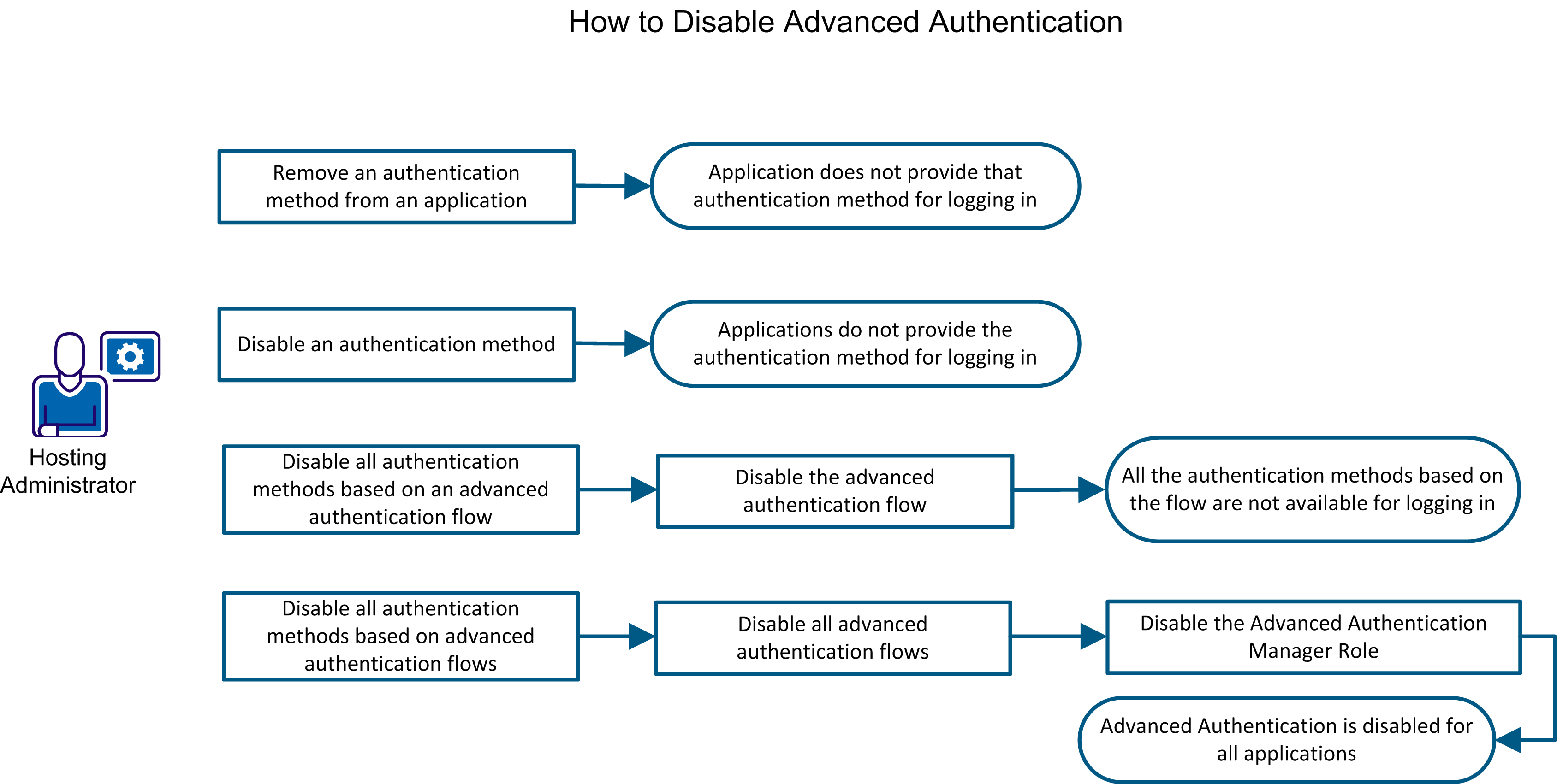
Depending on the configuration request from the tenant administrator, perform the required combination of the following tasks:
Remove an authentication method from an application if you do not want to provide end users the option of using that authentication method to log in to the application. Other applications in which the same authentication method has been added would continue to provide the option of using that authentication method to log in.
Follow these steps:
The search results appear.
The Modify Application screen is displayed.
The authentication method is removed from the application.
Disable an authentication method if you do not want any application to provide end users the option of using that authentication method for logging in.
Note: If you plan to disable an advanced authentication flow, first disable each authentication method that is based on that flow.
Follow these steps:
The search results appear.
The Modify Authentication Method screen opens.
The Authentication Method is disabled.
You can disable an advanced authentication flow. Before you disable an advanced authentication flow, you must disable all the authentication methods that are based on that flow.
Note: While disabling an advanced authentication flow, it is optional to disable the underlying credential types.
Follow these steps:
The Select Flow Types screen opens.
The Enabled Flow Types screen opens.
The advanced authentication flow is disabled.
The Advanced Authentication Manager role is one of the roles that control Advanced Authentication. To disable Advanced Authentication, disable all authentication methods that are based on Advanced Authentication, disable all advanced authentication flows, and then disable the Advanced Authentication Manager role. The outcome is that Advanced Authentication is not available to any application. No further configuration changes can be made to Advanced Authentication until you re-enable the role.
Follow these steps:
The Enable/Disable Admin Role screen opens.
The Advanced Authentication service is disabled.
CloudMinder 1.5 supports RADIUS. RADIUS offers two-factor authentication for VPN systems protected by CloudMinder. RADIUS is enabled by default, and you configure RADIUS clients as outlined in the following diagram:
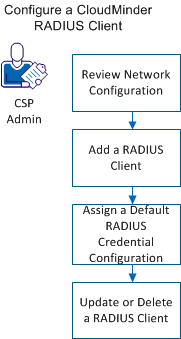
As a prerequisite, configure the ArcotID OTP application to use the ArcotID OTP authentication type. To configure a CA CloudMinder RADIUS Client, complete the following tasks:
Review this section before adding RADIUS clients and configuring a firewall and load balancer.
Authentication Manager is not exposed outside the network. A proxy server runs on the web server, which forwards authentication requests. All requests must go through the proxy.
AuthMinder is on the app tier and listens on port 1812 for UDP traffic. The web-tier proxy server listens to client requests on 1812, and listens to AuthMinder responses on 1814. This information is important when configuring your firewall and load balancer.
If SNAT is enabled on the web-tier load balancer, each external IP of the VPN servers that sends requests to CA CloudMinder should be mapped to a unique, static, internal IP. The same internal IP should be used when you add RADIUS clients.
You can add a RADIUS client for an organization from the Arcot Administration Console.
Follow these steps:
Specifies the IP Address of the RADIUS client through which users authenticate to AuthMinder Server.
Specifies the secret key shared between the RADIUS client and the AuthMinder Server.
Note: Keys must be between 1 and 512 characters.
Specifies a short description of the RADIUS client. If you configure multiple clients, the description of each client helps distinguish between clients.
Select In-Band Password.
Specify 224.
Specifies the value corresponding to the attribute ID. You can pass static values, such as user attributes or a combination of static values and variables. For example ,for the user JSmith, you can include the full name in RADIUS response as:
Name=$$LNAME$$,$$FNAME$$
to return:
224= [Name=Smith, John]
Note: The mapped attributes FNAME, LNAME, TELEPHONENUMBER, and EMAILADDR can be returned.
The RADIUS client is added.
This section shows you how to assign a default RADIUS credential type resolution configuration.
Follow these steps:
The default RADIUS credential type resolution configuration is assigned.
If a RADIUS client is configured, the RADIUS Configuration page displays the configured clients in the Configured RADIUS Clients table. You can use this table to update or delete the RADIUS client IP addresses.
Follow these steps:
|
Copyright © 2015 CA Technologies.
All rights reserved.
|
|