

To configure the SMPS environment, you must authenticate users using an OAuth authorization server. To do this, configure single sign-on between the federation system and the OAuth authorization server.
The federation system provides default support for the following OAuth authorization servers:
The following process describes how the federation system processes a user request to access a federated resource:
The following flowchart describes how you can authenticate users using an OAuth authorization server:
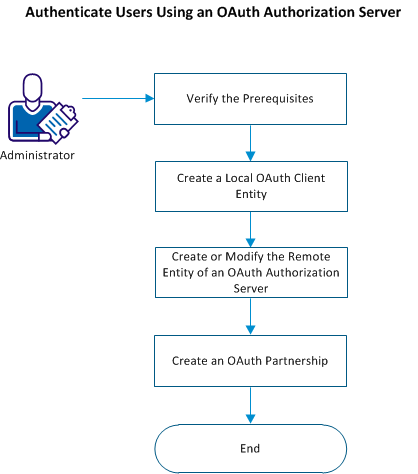
This section contains the following topics:
Create a Local OAuth Client Entity
Create or Modify the Remote Entity of an Authorization Server
Create an OAuth Partnership for Single Sign-On
Migrate an OAuth Authentication Scheme Set-up to OAuth Partnership
Perform the following steps before you configure a partnership to configure single sign-on between the federation system and an OAuth authorization server:
Create a local OAuth client entity for the partnership between the federation system and an OAuth authorization server.
Follow these steps:
The Redirect URL is constructed. Use this URL for initiating an OAuth transaction.
The system provides remote entities for each of the following OAuth authorization servers that are supported by default:
The values of each remote entity are pre-configured with known values of the entity. You can modify the values to suit your federation environment or create a remote entity for any OAuth authorization server.
Follow these steps:
Create a new remote entity:
a. Navigate to Federation, Entities, Create Entity.
b. Select Remote as Entity Location, and select OAuth Authz Server as the New Entity Type.
c. Click Next.
d. Enter the values and click Next.
Modify the pre-populated values of a remote entity:
a. Navigate to Federation, Entities, and search for the entity that you want to modify.
b. Click the Actions option of the entity, and click Modify.
c. Click Next to go to the Configure Entity tab.
d. Modify the values and click Next.
To let the federation system retrieve user information from the authorization server, create an OAuth partnership between the OAuth authorization server as the asserting party and the federation system as the relying party.
Follow these steps:
An OAuth partnership is configured to let users sign-on to a federated resource using the OAuth authorization server credentials.
When the federation system receives a user request in the following format, the request is processed per the partnership configuration:
https://baseURL_of_the_partnership/affwebservices/public/oauthtokenconsumer?AuthzServerID=authorization_server_id
Or
https://baseURL_of_the_partnership/affwebservices/public/ oauthtokenconsumer/disambiguation_id?AuthzServerID=<authorization_server_id>
The federation system is configured to implement the social sign-on feature.
Note: The Authorization URL constructed above should be configured as part of the External Authentication Scheme created for the tenant. You must then map it to an application in the CA CloudMinder tenant portal.
If you configured an OAuth authentication scheme in your environment to authenticate users using an OAuth provider, you can migrate your authentication scheme set-up to a federation partnership.
Follow these steps:
https://server:port/affwebservices/public/oauthtokenconsumer
https://server:port/affwebservices/public/oauthtokenconsumer
and
Either:
/chs/redirect/<tenantName>/<uniqueName>
Or:
/affwebservices/<tenantName>/<uniqueName.jsp>
https://server:port/affwebservices/public/oauthtokenconsumer?AuthzServerID=<AuthorizationServerID>
The topic shows you how to configure the attributes in the “openformatcookie” used by the user provisioning service to provision new users.
Follow these steps:
|
Property |
Value |
Description |
|
openformat.cookie.domain |
ca.com |
Enter the domain name with which the cookie needs to be created. |
|
openformat.cookie.zone |
SM |
|
|
openformat.cookie.name |
DEFAULT |
|
|
openformat.cookie.encryption.password |
Firewall |
Password used User provisioning section in the partnership |
|
openformat.cookie.encryptiontype |
AES256/CBC/PKCS5Padding |
Encryption algorithm used to generate the above password.
AES128/CBC/PKCS5Padding AES192/CBC/PKCS5Padding AES256/CBC/PKCS5Padding 3DES_EDE/CBC/PKCS5Padding |
|
Copyright © 2015 CA Technologies.
All rights reserved.
|
|