

Setting Up CA GMI › Define the Data Collection Mode
Define the Data Collection Mode
CA GMI can be configured to collect data in either Automatic or Manual mode.
- In Automatic mode, object data is collected automatically when you open an object.
- In Manual mode, object data is only collected by the Windows Client when you click the Execute icon (
 ) in the open object view Toolbar.
To define the data collection mode in the Windows Client
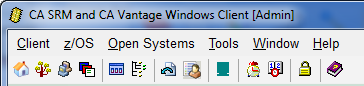
- Click Tools in the Windows Client main window Menu Bar.
The following is a sample of the Windows Client main window Menu Bar and Toolbar.
The Tools menu expands to display available items, as shown in the following sample:
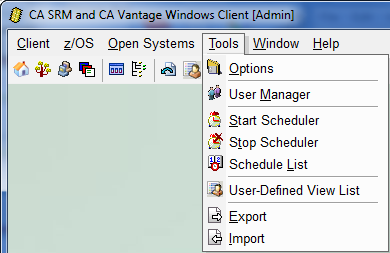
- Select Options from the Tools menu drop-down list, to open the Windows Client Options wizard.
- Select the Host Defaults page in the navigation tree in the left-side panel of the Windows Client Options wizard.
- Select the drop-down arrow in the z/OS View Execution field, to display the options, as shown in the following sample:
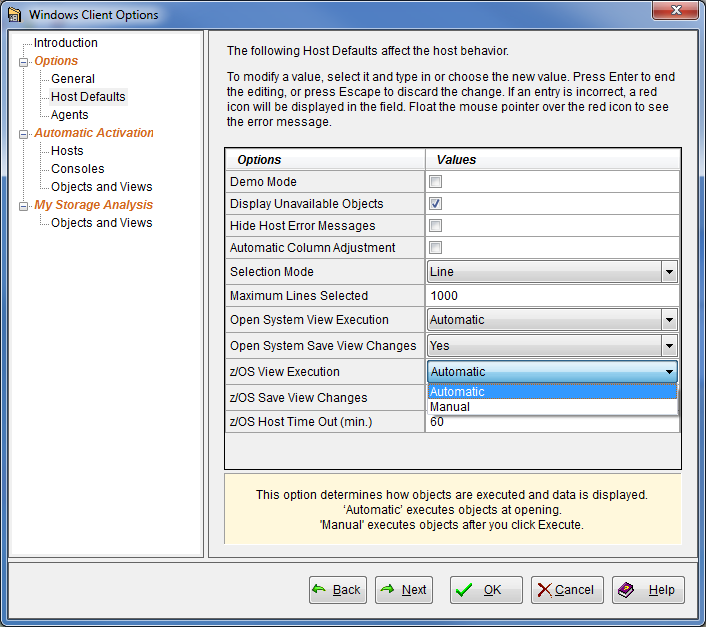
- Select the mode you want the system to use and click OK.
The Windows Client Options wizard closes. When you select an object in the Object Tree the Windows Client will collect data based on the mode that you have selected.
Note: The examples in this guide assume that Automatic mode is selected.
Copyright © 2013 CA.
All rights reserved.
|
|