

|
|
|
After you start the Windows Client and have defined z/OS host connections, you can then connect the Windows Client to a z/OS host and log in to the z/OS host. Once that is done you can start using CA GMI.
To connect and log in to the z/OS host
Note: The following procedure assumes you have predefined your z/OS hosts and they are displayed in the Host List dialog. If you do not have predefined hosts in the Host List dialog then see the section Define a z/OS Host. If the Host List dialog is already displayed in your Windows Client window then skip step 1.
 ) in the toolbar.
The Host List dialog appears. The following is a sample of the Host List dialog.
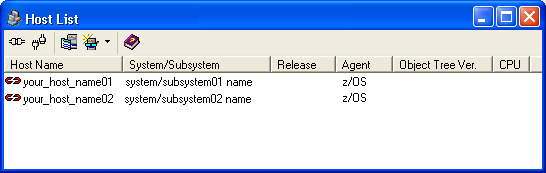
The selected host definition is highlighted as shown in the following sample.
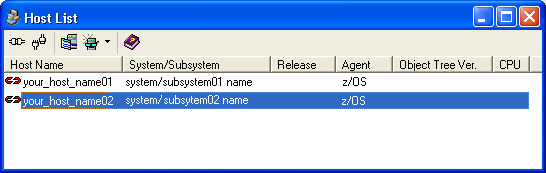
 ) in the Host List dialog toolbar.
If your user ID and password were provided in the Host Definition dialog for the selected host, the Windows Client attempts to connect to the host. If the connection is successful then the connection status icon changes from the Not Connected icon ( ) to the Connected icon (
 ). You can begin using CA GMI and you can skip step 4.
If your user ID and password were not provided in the Host Definition dialog for the selected host, then the Host Login dialog appears as shown in the following sample dialog, and you must proceed to the next step.
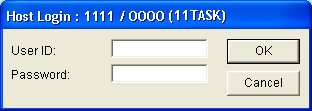
The Host Login dialog disappears.
The Windows Client attempts to connect and log on to the z/OS host. When the connection and log on is complete, the connection icon in the Host List Dialog changes from the Connecting icon ( ) to the Connected icon (), as shown in the following sample, and you can begin using CA GMI.
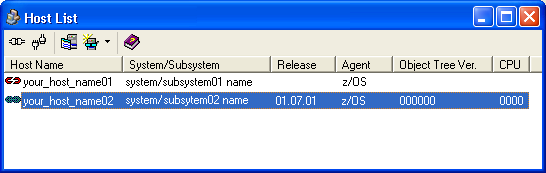
Note: For more information about defining hosts and connecting to hosts, see the CA Vantage SRM Windows Client Guide or the online help.
| Copyright © 2012 CA. All rights reserved. | Tell Technical Publications how we can improve this information |