

You can set the action you want each Manage Resources operator to take. Possible actions include taking and freeing units or locking and unlocking resources.
Follow these steps:
The Action Properties dialog appears.
Note: Both the Resource Path and Resource Name fields accept expressions. Enclose any literal strings between double quotation marks.
Takes the number of resource units specified in the Amount field.
Makes the number of resources specified in the Amount field available.
Locks the resource so other resource operators cannot take resource units or lock the resource. Actions can still free resource units that were taken before a resource was locked, but the freed units will not be available until after the resource is unlocked.
Unlocks a locked resource.
The new action is added to the Action list.
Notes: To remove an action from the Action list, click the action, and then click the Delete button. To edit an existing action, click the action and then click the Edit button. To view a selected action in a process that is not checked out, click the View button.
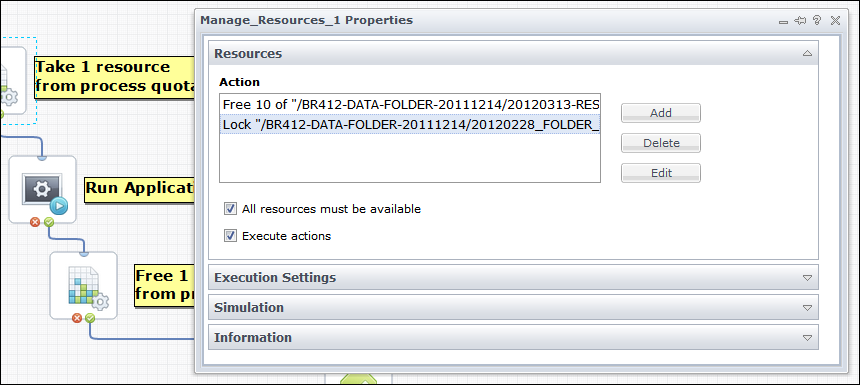
The following graphic shows two examples.
|
Copyright © 2014 CA.
All rights reserved.
|
|