

Use the Preview tab to inspect the dates to include and exclude in a calendar.
You can also compare the dates in one calendar with dates in a second calendar. For example, define a standard work calendar that omits the holidays or vacation days defined in another exclusion calendar. You can preview how the exclusion calendar would affect the standard work calendar as you edit it.
|
Item: |
Description: |
|---|---|
|
|
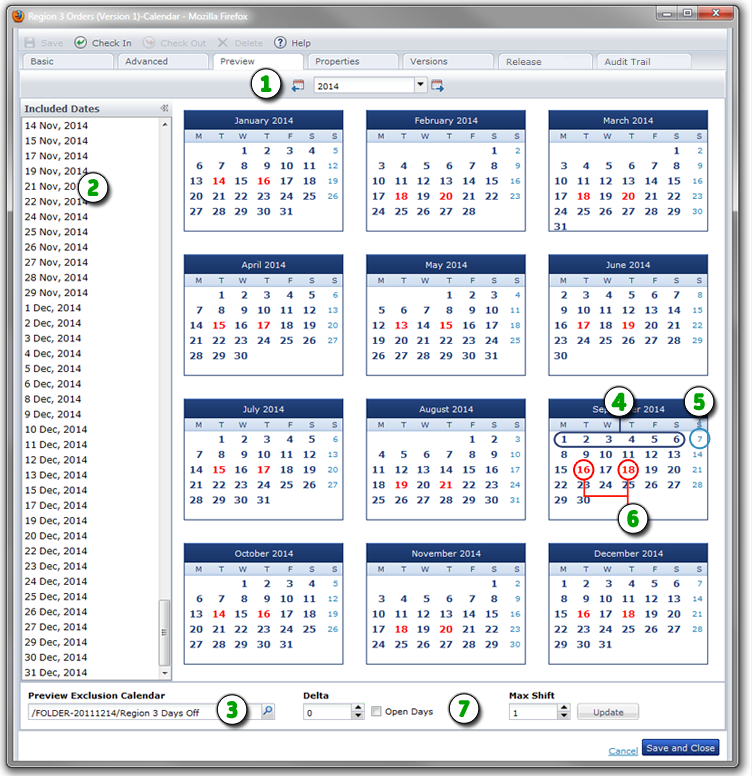
Preview Tab and Year: After defining a calendar on the Basic or Advanced tab, click the Preview tab to view the dates. Click Previous Year, Next Year, or select a year. |
|
|
Included Dates: This pane displays all the dates included in your calendar rule settings. |
|
|
Preview Exclusion Calendar: (Optional) Select a separate calendar to display conflicts in bold red in the calendar preview. |
|
|
Included Dates: The calendar preview displays dates included in your calendar with bold dark blue numbers. |
|
|
Excluded Dates: The calendar preview displays dates that are manually or automatically omitted from the calendar rules with light blue numbers. |
|
|
Conflicting Dates: The calendar preview displays dates that overlap or conflict with the dates defined by an optional exclusion calendar with bold red numbers. |
|
|
Conflict Resolution Fields: Use the Delta field to specify the number of days an eligible date is shifted when it falls on an omitted or excluded date. A negative Delta value shifts forward (earlier), and a positive value shifts backward (later). When this value is zero (the default), the eligible date, normally included in the calendar rule, is marked in bold red and omitted. Select the Open Days check box to count only included days when shifting the schedule to avoid an excluded or omitted date. Open days are days that are not specified by a condition or rule that omits or excludes dates. If you clear the Open Days check box, a shifted date potentially can fall on another excluded or omitted day. Use the Max Shift field to define the maximum number of shifts or adjustments to allow if repeated shifts fall on closed days. |
|
Copyright © 2014 CA.
All rights reserved.
|
|


