

When you initiate an export, you can select either Export Absolute Paths or Export Relative Paths. The option that you select affects the folder structure in which the selected object appears in the destination Orchestrator library.
Example: Content Package Export
Consider the following example. Under the root folder, the source Orchestrator library is Folder_a contains Folder_b, which contains Process 1 and Start Request Form 1.
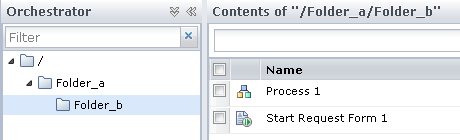
Case 1:
Assume the following criteria:
After the import, the content package appears in the following folder structure:
/test/Folder_a/Folder_b
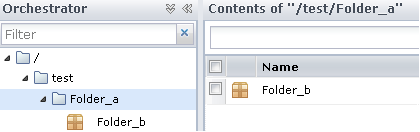
In the hierarchy, test and Folder_a are folders, but Folder_b is now a content package.
Assume the following criteria:
After the import, Content Pack appears in the following folder structure:
/test/Folder_b
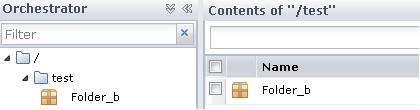
Example: Folder Export
Assume the following criteria:
/Folder_a/Folder_b/Process
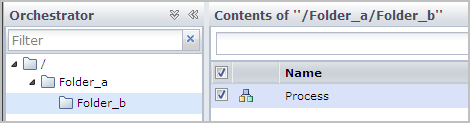
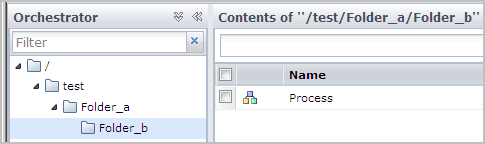
Export Folder_b with absolute paths. Import the exported content to the /test folder. After the import, the structure in the destination is:
/test/Folder_a/Folder_b/Process
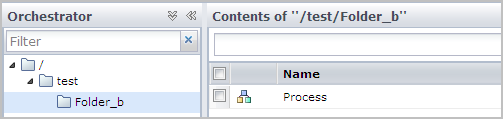
Export Folder_b with relative paths. Import the exported content to the /test folder. After the import, the structure in the destination is:
/test/Folder_b/Process
Example: Object Export
Export the object Process with absolute paths. Import the exported content to the /test folder. After the import, the structure in the destination is:
/test/Folder_a/Folder_b/Process
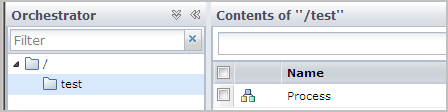
Export the object Process with relative paths. Import the exported content to the /test folder. After the import, the structure in the destination is:
/test/Process
|
Copyright © 2014 CA.
All rights reserved.
|
|