

Reinstall or Configure the Current Release › Example Scenario: Configure the Existing Installation to Regenerate CA Process Automation Certificates
Example Scenario: Configure the Existing Installation to Regenerate CA Process Automation Certificates
When you run the installation process for the release you previously installed, you have the option to reinstall or to configure the existing installation. This example scenario shows how to use the configure existing installation option to regenerate certificates that CA Process Automation uses to connect to CA EEM.
The Domain Orchestrator installation process lets you register (or re-register) CA Process Automation with CA EEM. This registration process generates application certificates for CA Process Automation with the same key length as the certificates that CA EEM uses.
Note: CA Process Automation has other certificates that are unaffected by registration; registration only generates the certificates that CA Process Automation uses to connect to CA EEM. The certificate location is install_dir/server/c2o/.c2orepository/public/certification.
This example scenario assumes the following setup:
- The CA EEM administrator installs or upgrades to CA EEM Release 12.51 with default certificates, which have 1024-bit keys.
- You install or upgrade to CA Process Automation Release 4.2. The generated CA Process Automation certificates also have 1024-bit keys.
- Later, the CA EEM administrator generates new CA EEM certificates with longer key lengths (2048-bit or 4096-bit).
In this case, use the following procedure to regenerate CA Process Automation certificates with key lengths that match those of the CA EEM certificates.
Follow these steps:
- Install the Third Party Software.
When the third-party software installation completes, the CA Process Automation Domain Setup installation process starts.
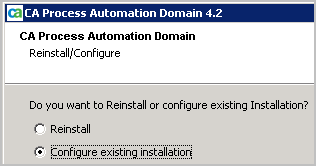
- Click through the initial pages until the Reinstall/Configure page appears.
- Select Configure existing installation. (This process modifies the properties files; it does not modify any JARs.)
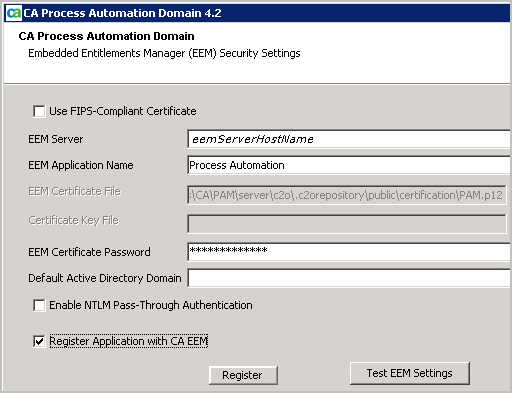
- Click through the pages until Embedded Entitlements Manager (EEM) Security Settings page appears.
- Select the Register Application with CA EEM check box and then click Register.
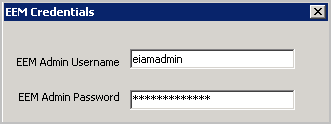
- Enter the credentials of the CA EEM administrator. Type EiamAdmin for the EEM Admin Username. Enter the associated password.
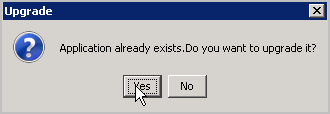
- Click Yes to upgrade the application even though you are not upgrading the CA Process Automation release.
(Clicking Yes is required for the generation of the application certificates that CA Process Automation needs.)
- Click Test EEM Settings. Click OK to Setup messages.
- Enter the credentials of a CA Process Automation user who is assigned to the PAMAdmins group.
Note: The example entry of pamadmin, pamadmin, is valid only if you configured CA EEM to use the internal user store.
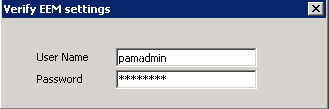
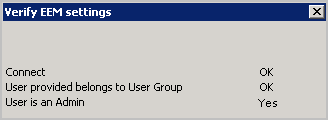
- Verify that CA Process Automation connects to CA EEM and that CA EEM authenticates the credentials.
- Click through the rest of the installation process and then click Finish.
Copyright © 2014 CA.
All rights reserved.
|
|