

Datasets let you define groups of variables to store and organize data. Datasets provide a way to share data across multiple process instances.
A dataset object defines a collection of variables that you can reference by name. You create and manage datasets in the Library Browser just like any other automation objects for an orchestrator. A dataset can contain any number of fields, called variables. Assign each variable to one of the following data types by the kind of data the variable stores:
You can configure all data types to contain a single value or multiple indexed values (called an array). You can define an indexed field as an array of one or more dimensions.
You can edit dataset objects and custom operator datasets from the Library Browser. You can edit datasets for processes and each operator in the Process Designer.
|
Item: |
Description: |
|---|---|
|
|
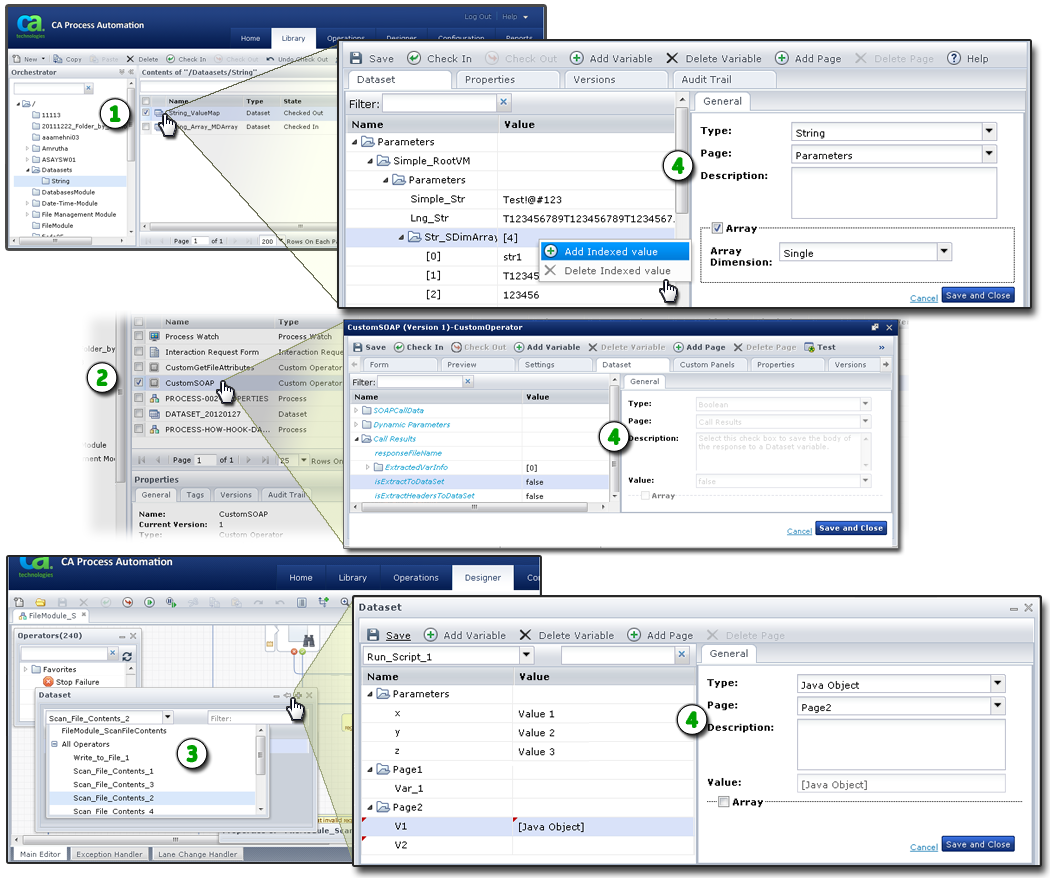
Datasets in the Library Browser: Create, edit, and manage your own dataset objects in the Library Browser. Open a dataset to edit it. |
|
|
Custom Operator Datasets: Create, edit, and manage your own datasets for custom operator objects in the Library Browser. Open a custom operator to edit its dataset. |
|
|
Datasets in the Process Designer: The Dataset palette displays the datasets available for the process and each operator. You can also refer to your own datasets in code. Click the |
|
|
Pages, Variables, Data Types, and Values: Define the pages and variables for the dataset in the left half of the dialog. Define the data types and enter a description in the right half. Define values on either side. Right-click the variable name for an array to add or delete an indexed value. |
|
Copyright © 2014 CA.
All rights reserved.
|
|


 icon to open a dialog for editing the selected process or operator dataset.