

A previous section of this guide introduced process operators. To learn more about each operator, see the Content Designer Reference.
This section provides general guidelines for configuring properties and working with different types of operators, including custom operators.

|
Item: |
Description: |
|---|---|
|
|
Designer Tab and Toolbar: When you open a new process or you edit an existing one from the Library Browser, the Designer tab appears. In the toolbar, click View and select the Operators and Properties palettes. |
|
|
Operators Palette: Search for operators by folder or name. |
|
|
Custom Operators in a Custom Group: Drag-and-drop a custom operator from this palette to your process layout. Right-click an operator to add or remove it from the Favorites group. |
|
|
Properties Palette: Use this palette and its buttons, links, and windows to manage the properties of the currently selected operator. Expand and collapse panels as you work. Each panel consists of similar properties. |
|
|
Additional Windows: Some properties appear in their own windows. |
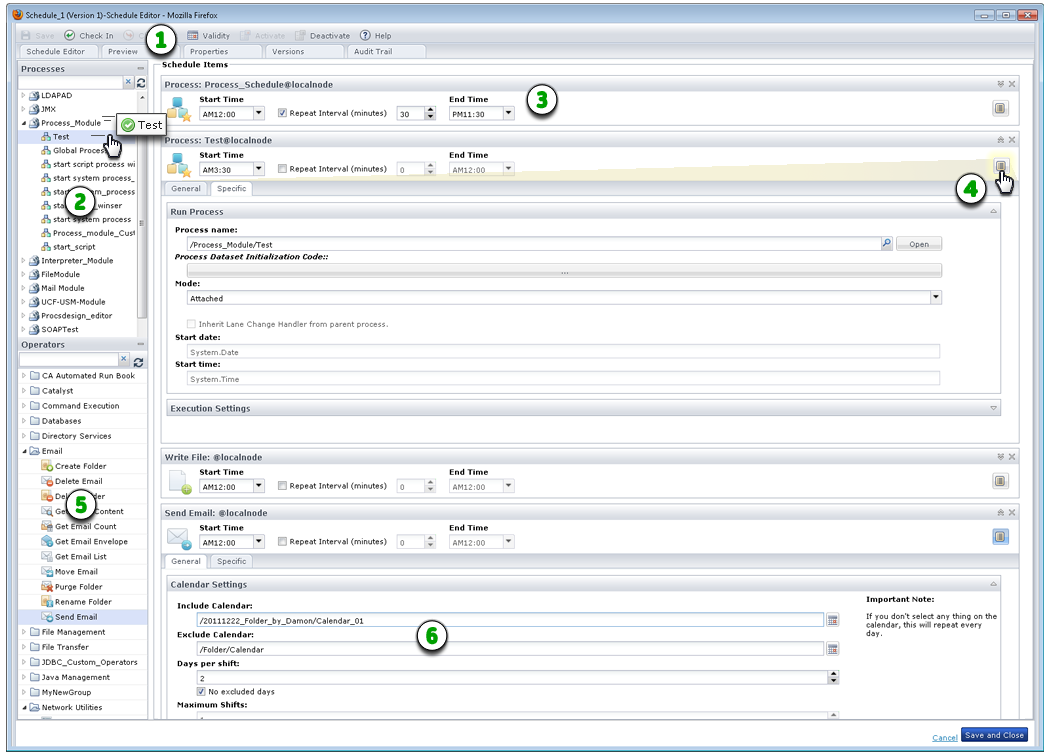
You also work with operators to configure schedules.
|
Item: |
Description: |
|---|---|
|
|
Schedule Editor: When you open a schedule from the Library Browser, the Schedule Editor appears. Use the toolbar to activate, set validity of, check in, or save the schedule. |
|
|
Processes Pane: Select the processes to include and drag them to the Schedule Items page. |
|
|
Scheduled Process in Queue:Set the duration and frequency for running the process in a single day. |
|
|
Process Properties: Click Properties to view process properties on the General and Specific tabs. |
|
|
Operators Pane: Select the operators to include and drag them to the Schedule Items page. |
|
|
Operator Properties: Click Properties to view operator properties on the General and Specific tabs. |
|
Copyright © 2014 CA.
All rights reserved.
|
|


